
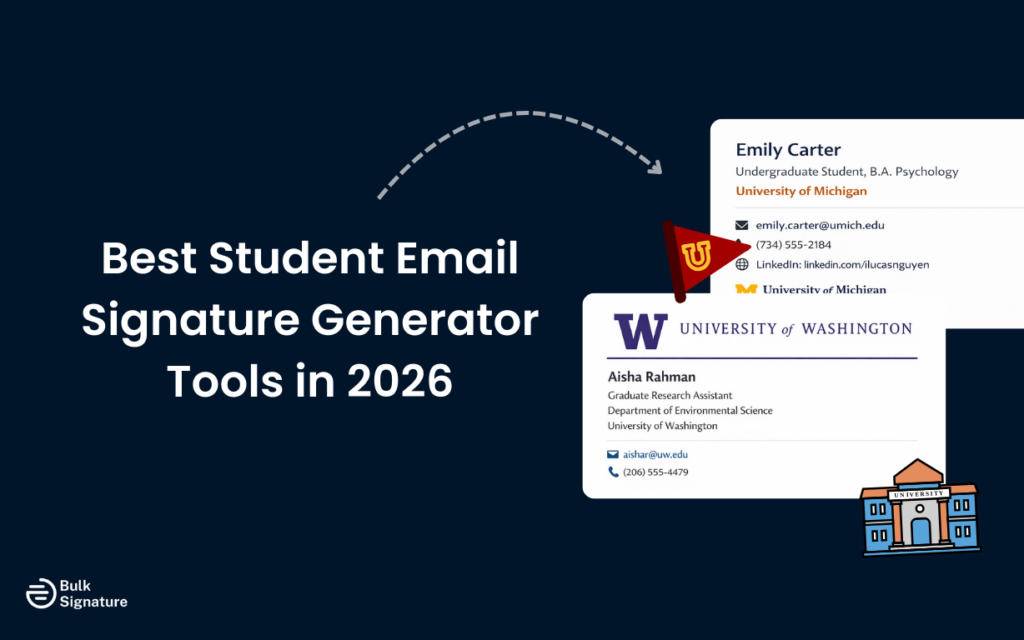
Most students don’t think twice about their email signature… until they have to email a professor for the first time or apply for an internship. Then, they often find themselves overthinking every detail, wasting hours trying to get the formatting and layout “just right”.
If this sounds familiar, read on for our full guide on the best student email signature generator tools in 2026, plus some practical advice on what makes a strong email signature for students.
Core Elements Every Student Email Signature Should Include
Before we get to the tools, let’s take a moment to cover the basics of what good student email signatures have.
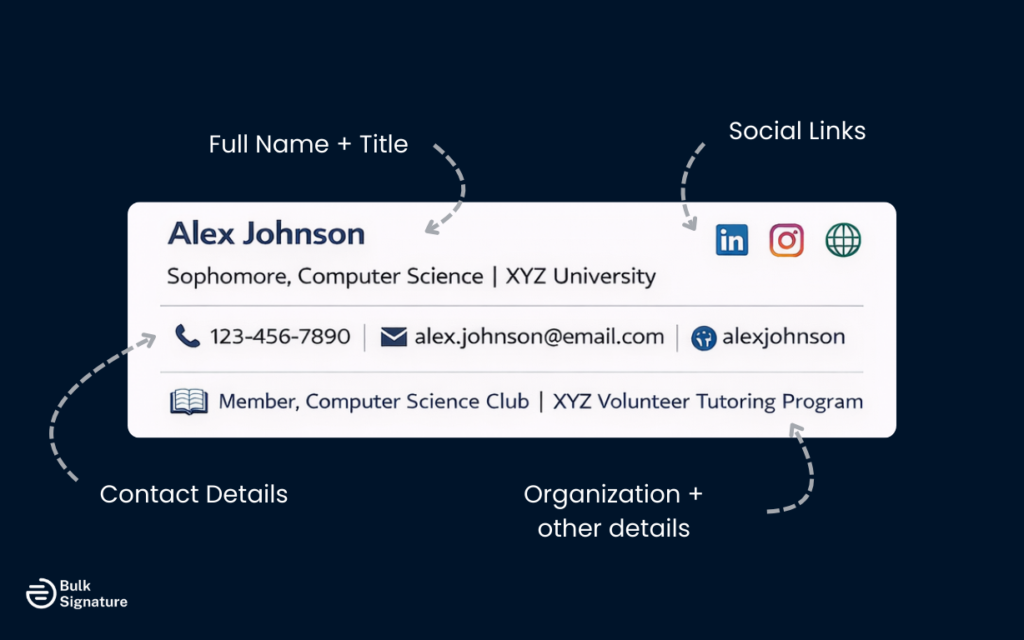
Similar to company-branded email signatures, a strong student email signature doesn’t necessarily need to be complicated. In fact, the best ones are simple, clear, and intentionally designed to put the right information front and center. Think of it as a digital business card (but student-friendly), with the goal being to make it easy for whoever you’re emailing to know:
- Who you are
- What you’re studying or working toward
- How to reach you without having to ask
Here’s a quick look at the essential signature details to include.
Full Name and Academic or Professional Role
Start with your full name (use your formal name rather than a nickname). This helps your recipients immediately understand who they’re communicating with.
Below your name, make sure to include your current role or designation.
This might be:
- Undergraduate or graduate student
- Research assistant
- Teaching assistant
- Intern or student employee
Adding a clear role provides context and makes your email feel more professional.
University, Department, or Organization
Adding your university name and department also provides helpful context. By showing exactly where you study or work, you immediately come across as more credible, which is helpful when reaching out to someone for the first time.
If you’re emailing on behalf of a campus job, department, or student organization, make sure to include that information as well to enhance credibility.
Contact Details
Your contact details should always be visible, so it’s easy for your recipients to follow up with you without having to search through past messages.
At a minimum, this usually includes:
- Your email address (especially helpful in forwarded messages)
- A direct phone number
Avoid listing unnecessary details like a fax number or mailing address, unless it’s required by your university or department.
Visual Branding (Less Is More)
Visual elements can definitely enhance an email signature and help you stand out, but they should always be used carefully.
Typical visual elements include:
- A university logo, approved company logo, or professional headshot
- Clean font styles that match your institution’s branding
- Subtle brand colors to add emphasis
With visuals, the goal is only to reinforce your organization’s brand identity, not distract from your main message. Overusing images or mixing too many fonts and colors can also cause display issues across some email clients, so keeping things simple and consistent is usually the safest choice.
For more email signature design inspiration, read this: How to Design your Email Signature.
Optional Links and Extras
Depending on your role, you may also wish to include:
- A website or portfolio link
- Relevant social media links (such as LinkedIn or your portfolio page)
- A simple call to action, like “View Portfolio”
These extras should always feel relevant and professional. If they don’t add value to the conversation, it’s best to leave them out.
What Students Should Avoid in Email Signatures
What you don’t include in your email signature is just as important as what you do include.
Why? Because it’s easy for student email signatures to slowly collect extra details or formatting quirks over time, which can make your signature harder to read and less professional. Here are just a few examples.
Too Many Images or Visual Elements
While it’s tempting to add images, logos, or lots of decorative graphics, too many visuals can cause formatting issues across major email clients like Gmail, Microsoft Outlook, Apple Mail, and Yahoo Mail.
Pro Tip: If you include visuals at all, keep them minimal and intentional.
Overloading Social Media Links
Social media icons can be useful, but only when they’re relevant to what you study or where you work. Adding multiple social media icons or linking to every platform you’re on can make your signature feel cluttered and unfocused.
Pro Tip: Stick to one or two platforms that support your academic or professional goals, such as LinkedIn, GitHub, or a personal website.
Informal Language or Nicknames
Your email signature should use your full, formal name and avoid casual nicknames, emojis, or jokes. Even if the email message itself is informal, the signature should remain professional, especially when communicating with professors, administrators, or employers.
Pro Tip: When in doubt, default to the name that appears on your university records or official documents.
Outdated or Incorrect Information
Email signatures are easy to forget about, which means details like job titles, departments, or phone numbers can quickly become outdated, which may cause confusion or missed opportunities.
Pro Tip: Make a habit of reviewing your signature whenever your role, program, or contact details change.
Best Student Email Signature Makers and Tools in 2026
Now that you’re familiar with what makes a strong student email signature, let’s move on to the tools that can help you create one without overthinking it.
There’s no shortage of email signature tools out there, but not all of them are built with students in mind. Below are some of the best options in 2026, depending on what you need.
Best Overall Student Email Signature Generator: Canva
Canva’s email signature generator is a popular choice for a reason: it just feels easy right from the start. And if you’ve used Canva for a class presentation or a resume before, you’ll already know your way around.
Why It’s Perfect for Students:
- Drag-and-drop editor with no design or HTML knowledge required
- Large library of modern, professional email signature templates
- Easy customization for fonts, colors, icons, and layout
Limitations:
- Some templates and design elements require a Canva Pro account.
- Not built specifically for email signatures (you’ll have to manually install and adjust your signature in your email client).
- No centralized management for updating multiple signatures at once.
Overall, Canva is a solid “set it and forget it” option for students who want a clean, professional signature that doesn’t feel generic.
Best Free Email Signature Generator for Students: HubSpot’s Email Signature Generator
HubSpot’s free email signature generator is another good starting point for students who just need the very basics. It’s quick to use, completely free, and doesn’t require any design experience to get up and running.
Why It’s Perfect for Students:
- Completely free
- Simple email signature template
- Quick copy-and-paste setup
Limitations:
- Limited design flexibility and customizations
- No branding control for institutions
- No centralized way to update or manage your signatures over time
- Basic layouts can feel generic for ongoing or professional use.
HubSpot is definitely a good option for creating your very first student email signature, but it’s not necessarily designed for long-term management.
Best Tool for Custom and Branded Student Signatures: MySignature
MySignature is a popular option for interns, student employees, and early-career professionals who want a bit more control over how their email signature looks.
Why It’s Perfect for Students:
- Supports custom email signature designs
- Allows company logos, brand colors, and social media platform links
- Offers more control over layout and font styles
Limitations:
- Most useful features require a paid plan.
- Can feel like overkill for simple academic or personal emails.
This tool is especially useful when you want your signature to reflect a particular department or organization, rather than just a generic student template.
Best Advanced Email Signature Editor: Gimmio
Gimmio’s email signature generator is designed for users who want full creative control over their email signature. It’s more powerful than most free tools, making it a strong option for students working in marketing, design, or client-facing roles.
Why It’s Perfect for Students:
- Advanced customization for layouts, spacing, and visuals
- Great for portfolio links, social icons, and call-to-action buttons
- Clean, modern designs that don’t feel “student-made”
Limitations:
- Paid tool with no long-term free version
- Slightly steeper learning curve than beginner tools
- Overkill for simple academic or personal use
Gimmio is a good choice if you need your email signature to feel a bit more polished than a standard template.
How to Add a Student Email Signature in Popular Email Clients
Once you’ve created your email signature using a generator or template, the next step is adding it to your email account. While the exact steps vary slightly by email client, the process is generally quick and only needs to be done once.
Below is a simple walkthrough for the most common email platforms students use.
How to Add an Email Signature in a Gmail Account
- Open Gmail and click the Settings icon.
- Select See all settings.
- Scroll down to the Signature section.
- Click Create new to add a new email signature.
- Paste your signature into the editor (or build it directly there).
- Choose when the signature should appear (new emails, replies, or both).
- Scroll down and click Save Changes.
Your signature will now automatically appear in every new email message you send from your Gmail account.
How to Add an Email Signature in Microsoft Outlook
- Open Outlook and go to Settings.
- Select Mail, then Compose and reply.
- Locate the Email signature section.
- Paste or edit your email signature in the editor.
- Assign the signature to new messages and replies.
Outlook supports HTML signatures, so logos, links, and formatting should display correctly across all major email platforms.
How to Add an Email Signature in Apple Mail
- Open Apple Mail and go to Settings (or Preferences).
- Select Signatures.
- Choose the email account you want to apply the signature to.
- Click the + icon to create a new signature.
- Paste your email signature into the editor.
- Assign it to your account and test it in a new message.
Apple Mail users should double-check spacing and image alignment, as formatting can vary slightly from other platforms.
Bonus Tip on Testing Your Signature
After adding your signature to your email account, send a few test emails to yourself or a friend to see how it looks:
- On a mobile device
- In dark mode
- Across different email clients
These are the situations where small layout issues or formatting quirks tend to show up. Once spotted, you can make the necessary adjustments to make sure your signature always displays properly.
Centralized Email Signature Management for Schools and Universities

While individual students can get by with free or lightweight email signature generators, schools and universities face a very different challenge. And that’s managing email signatures across hundreds (or even thousands) of student, faculty, and staff education email accounts.
There are tools designed specifically to help with this, but not all of them are built for the realities of an academic environment.
If your institution needs a way to manage email signatures centrally, enforce branding rules, and roll out updates (without relying on individual users), BulkSignature was built for exactly that. If you’d like to see how it works, book a free demo with us today and see how easy it is to keep every campus email consistent and on-brand.
Frequently Asked Questions About Student Email Signatures
Should students include professional designations in their email signature?
It depends on the context. If you’re a graduate student, researcher, or student employee, professional designations (such as a degree in progress or an official role) can add some clarity and credibility. However, avoid listing credentials that aren’t completed or relevant to the conversation. When in doubt, keep it simple and accurate.
Do students need to include essential branding elements like school logos or colors in their email signature?
Not always. For most students, a simple text-based email signature is more than enough. Branding elements like logos or colors are typically only necessary if you’re emailing on behalf of a university department, campus job, or organization. When used, they should be subtle, approved by the institution, and never distract from the main message of your email.
Is an email signature the same as a handwritten signature?
No. A handwritten signature (like an electronic signature) is used to formally sign documents and indicate legal intent or written consent. An email signature is the small block of information that appears at the bottom of your emails, letting people know who you are and how they can reach you. While both serve identification purposes, they are used in very different situations.


