
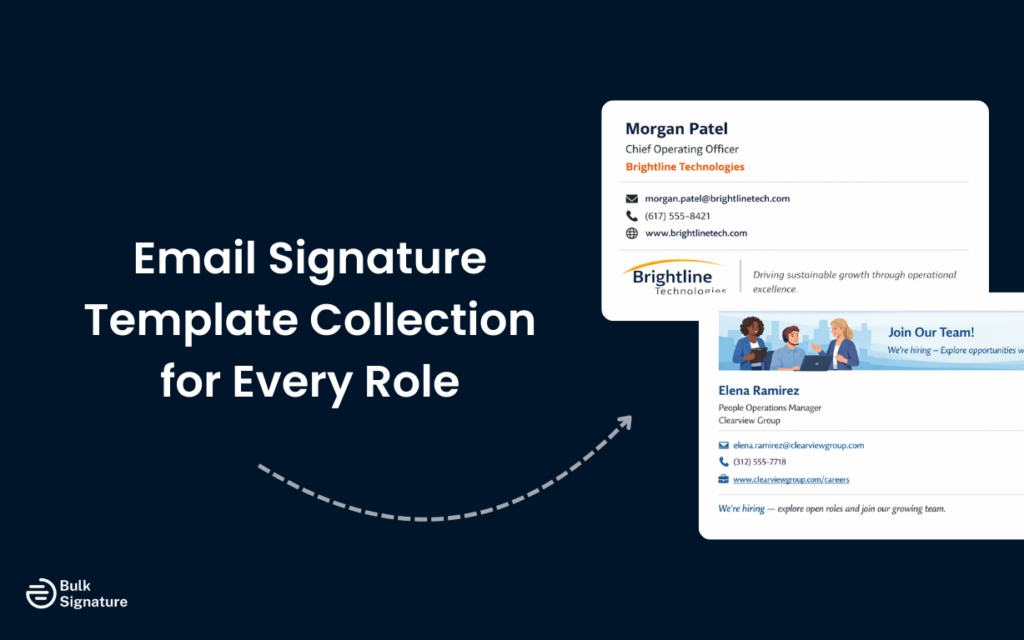
Below are ready-to-use email signature templates organized by role — executives, sales reps, marketers, support agents, HR teams, and finance professionals. Each category includes a visual mockup, a copy-paste text template, and notes on what to include or skip for that role. If you need to set up your signature structure first, start with the format guidelines below.
Most companies don’t set out to have messy email signatures. It just happens. Different roles, different formats, different ideas of what “professional” looks like — and suddenly every email feels a little inconsistent and a little off-brand.
The fix is a standardized email signature template that gives every team a starting point while leaving room for role-specific details like scheduling links, certifications, or department-specific CTAs. This guide walks through the correct format for any email signature, layout best practices, and ready-to-use templates for six common role categories — from C-suite executives to support teams.
Quick Answer: An email signature template is a fixed layout for name, job title, company, one or two contact methods, website and logo, usually four to six lines in an HTML table so it renders in Gmail and Outlook. This page has copy-paste templates for executives, sales, marketing, support, HR and finance, each with notes on what to include or leave out, plus the format rules and a step-by-step for building your own. Pick the template for the role, swap in your details, and test it on a phone before rolling it out.
What Is the Correct Email Signature Format?
An email signature format is the structure and arrangement of information in the block of text that appears below every email you send. The right format ensures your signature renders correctly across Gmail, Outlook, Apple Mail, and mobile devices — which collectively account for over 90% of email opens.
Here is the standard format, in order:
| Line | Content | Example |
|---|---|---|
| 1 | Full name | Sarah Chen |
| 2 | Job title | Company name | Head of Marketing | Acme Corp |
| 3 | Phone | Email | (555) 123-4567 | sarah@acme.com |
| 4 | Website | Social link | acme.com | LinkedIn |
| 5 | Company logo (optional) | [Logo image, max 200×50 px] |
A few format rules that prevent rendering issues:
- Maximum width: 600 pixels. Wider signatures break on mobile and get clipped in Outlook’s reading pane. For detailed sizing guidance, see our email signature size and layout guide.
- Maximum lines: 4-7 lines of text. Anything longer pushes your actual email content down and looks cluttered.
- Image file size: Keep total image weight under 50 KB. Large images trigger spam filters and slow load times.
- Font: Use web-safe fonts (Arial, Helvetica, Georgia, Verdana). Custom fonts render as fallbacks in most email clients. See our guide on the best fonts for email signatures for specific recommendations.
- Color: Limit to 2-3 brand colors. Avoid neon or low-contrast combinations that fail accessibility checks.
How to Choose the Right Email Signature Layout
The email signature layout determines how the elements above are visually arranged. There are three common layouts, each suited to different roles and brand styles:
Horizontal Layout (Side-by-Side)
The headshot or logo sits to the left, with text stacked to the right. This is the most common layout for corporate signatures because it keeps the signature compact and scannable. Works best for roles where visual branding matters — executives, sales, marketing.
Vertical Layout (Stacked)
All elements stack top to bottom: name, title, contact details, logo. This layout is simpler to code in HTML, renders more reliably across email clients, and works well on mobile. Best for support teams, operations, and roles where the signature needs to be functional rather than flashy.
Minimal Layout (Text-Only)
No images, no logo — just formatted text. This loads instantly, never triggers image-blocking warnings, and is the most accessible option. Use it for internal communications, developer teams, or environments where email bandwidth is a concern.
Whichever layout you choose, the goal is the same: make it easy for the recipient to identify who sent the email, what company they represent, and how to reach them through a different channel if needed.
Core Elements Every Professional Email Signature Template Should Include
| Element | Why It Matters | Best Practices |
|---|---|---|
| Full Name and Professional Title | Clearly identifying the sender helps recipients know exactly who they’re communicating with. This is especially helpful when emails are forwarded or revisited later. | Use the sender’s full name and official job title, and avoid nicknames or internal-only titles. |
| Company Name and Company Logo | These elements reinforce brand recognition and make it clear which organization the sender represents. | Only use the approved company name and logo, and keep the logo size modest and consistent across all employee email signatures. |
| Contact Details | Clear contact information makes it easy for recipients to respond or follow up, without having to visit your website or scroll through past emails. | Include a primary phone number, business email, and website, and avoid unnecessary or personal contact details. |
| Social Media Links | Professional social links add credibility and give recipients another way to connect. Limit to 1-2 relevant profiles. | Use small, recognizable icons. LinkedIn is standard for B2B. For setup help, see our guide on how to add social media icons to your email signature. |
| Consistent Formatting | Consistent formatting keeps signatures readable and professional across devices and email clients. | Maintain consistent font size, spacing, and layout, and test signatures across different email clients before rolling them out. |
Email Signature Template Examples by Role
Now that we’ve covered the fundamentals, here are email signature templates adapted for six different role categories. Each section includes a visual example, what to include, design guidelines, and a copy-paste text template you can customize.
Leaders and Executives

Executive email signatures set the tone for the entire company. They should project authority and trust while keeping the design clean and understated.
Make Sure to Include:
- Full name with official title (CEO, CFO, VP of Engineering, etc.)
- Company logo to reinforce branding
- A single website link, if it supports thought leadership or corporate positioning
- A short sign-off or quote (use sparingly and only if it aligns with the executive’s voice and role)
Design Guidelines:
- Keep the design minimal.
- Avoid banners, multiple icons, or large images.
- Including promotional banners can help raise awareness of key initiatives, but they should never overpower the message or primary email signature information.
Copy-Paste Text Template:
| James Anderson CEO, Brightline Technologies Phone: (555) 901-2345 | Email: james@brightlinetech.com Web: www.brightlinetech.com | LinkedIn: linkedin.com/in/jamesanderson |
Sales and Business Development
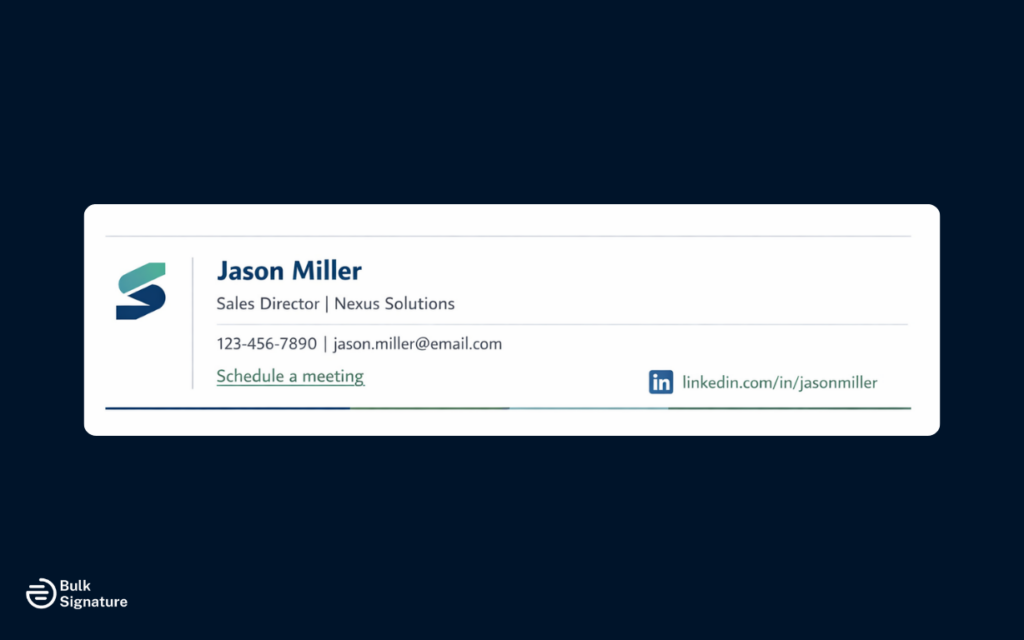
For sales and business development roles, email signatures can help support ongoing conversations with potential leads and existing clients by making it easy to connect, follow up, and take the next step.
Make Sure to Include:
- A direct scheduling or meeting link to drive leads (Calendly, HubSpot Meetings, etc.)
- One professional social link (typically LinkedIn) for added credibility
- A clear website or landing page link tied to the sales process
- Mobile phone number — sales reps need to be reachable
Design Guidelines:
- Keep the layout clean and easy to scan.
- Avoid aggressive CTAs or large promotional banners.
- Use a consistent font size and spacing so the signature remains readable.
- Consider adding a signature banner for current promotions or case studies — but keep it subtle.
Copy-Paste Text Template:
| Rachel Torres Account Executive, CloudFlow Solutions Phone: (555) 234-5678 | Mobile: (555) 876-5432 Email: rachel.torres@cloudflow.io | Web: cloudflow.io Book a Meeting: calendly.com/racheltorres LinkedIn: linkedin.com/in/racheltorres |
Marketing and Communications
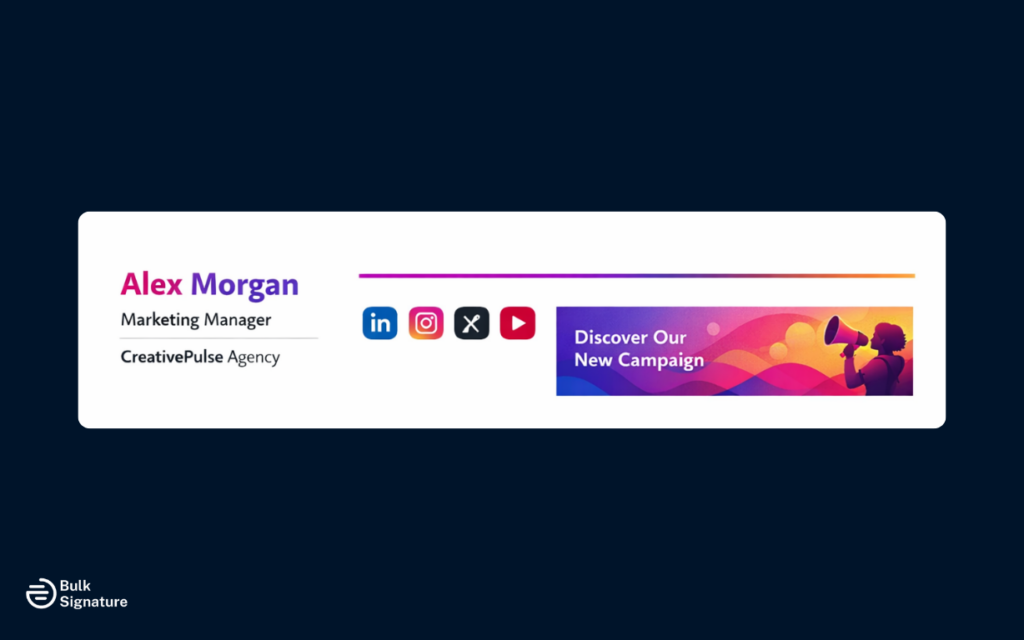
For marketing and communications teams, email signatures can help boost brand awareness and campaign visibility. Because these signatures often reach a wide range of external contacts, consistency and presentation are key for maintaining a polished brand image.
Make Sure to Include:
- Company logo and brand colors — marketing signatures should be the most on-brand in the company
- Links to the company blog, latest campaign, or resource hub
- Social media icons for the company’s active profiles (LinkedIn, Twitter/X, Instagram)
- Optional: a rotating promotional banner tied to current campaigns
Design Guidelines:
- This is the one role where slightly more visual flair is acceptable — but still keep it professional.
- Use brand-compliant colors and typography.
- If using a banner, keep it under 600×100 pixels and compress the image.
Copy-Paste Text Template:
| David Kim Content Marketing Manager, Pulse Digital Phone: (555) 345-6789 | Email: david@pulsedigital.com Web: pulsedigital.com/blog | LinkedIn: linkedin.com/in/davidkim |
Customer Support and Operations
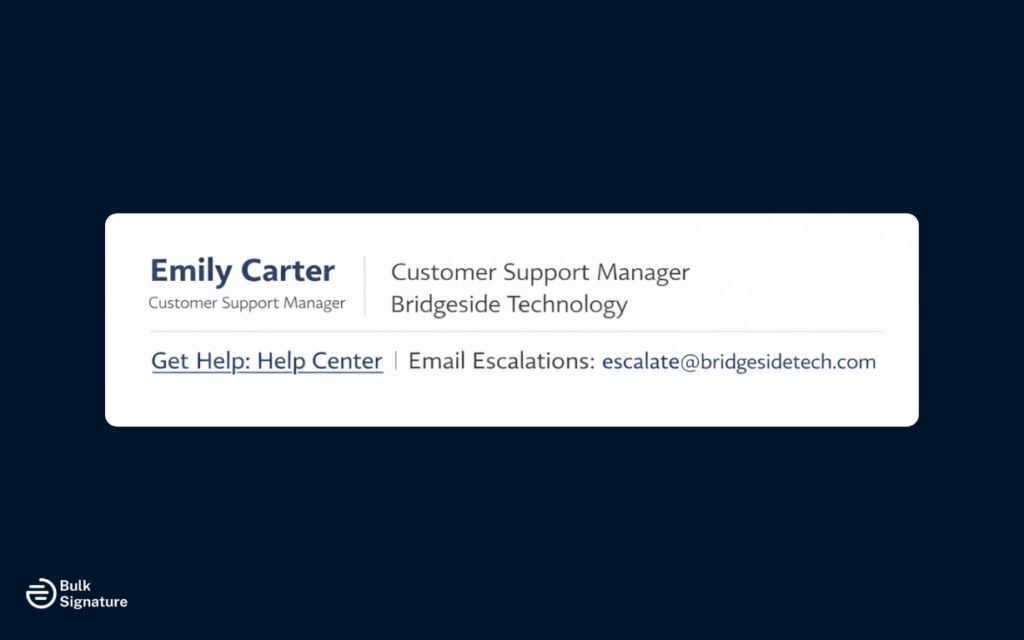
Support and operations signatures need to prioritize function over form. The recipient is usually looking for a way to get help, escalate an issue, or access self-service resources — so the signature should make those next steps obvious.
Make Sure to Include:
- A link to the help center, knowledge base, or support portal
- A direct phone number or chat link for escalations
- The team or department name (e.g., “Customer Success Team” rather than a personal title)
- Business hours or response time expectations, if relevant
Design Guidelines:
- Keep it simple and text-heavy. Support emails are often read on mobile.
- Avoid promotional banners — they feel tone-deaf in a support context.
- Use a consistent format across all support agents so customers know they’re dealing with an official team response.
Copy-Paste Text Template:
| Maria Santos Customer Success Specialist, Bridgeside Tech Email: support@bridgesidetech.com | Phone: (555) 456-7890 Get Help: help.bridgesidetech.com Hours: Mon-Fri, 9am-6pm EST |
Human Resources and People Teams

HR and People team signatures often reach both internal employees and external candidates. The tone should be welcoming, the contact details should be clear, and any legal or compliance disclaimers should be included where required.
Make Sure to Include:
- A link to the careers page or current job openings
- A direct phone number and email — HR communications often require follow-up
- The department name alongside the personal title
- Pronouns (optional, but increasingly standard — see our post on whether to include pronouns in your email signature)
Design Guidelines:
- Warm and approachable, but still professional.
- Avoid overly corporate or stiff formatting.
- If your company has an employer brand kit, use those colors and fonts.
Copy-Paste Text Template:
| Priya Sharma (she/her) People Operations Manager, Clearview Group Phone: (555) 567-8901 | Email: priya@clearviewgroup.com Careers: clearviewgroup.com/careers |
Finance and Legal
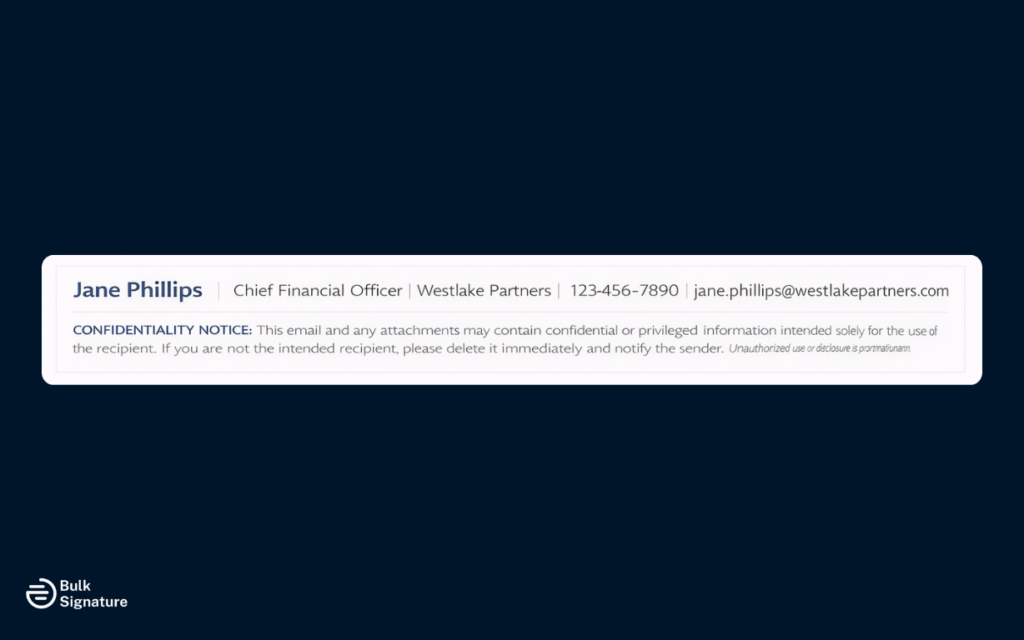
Finance and legal teams handle sensitive information. Their signatures should be clean, minimal, and — where required — include legal disclaimers or confidentiality notices. In many jurisdictions, email disclaimers are legally required for financial communications.
Make Sure to Include:
- Full legal name and professional credentials (CPA, Esq., etc.)
- Company name with legal entity designation (Inc., LLC, Ltd.)
- A confidentiality disclaimer, especially for client-facing emails
- Direct phone and email — no scheduling links or promotional elements
Design Guidelines:
- Keep it strictly professional. No banners, no quotes, no social icons.
- Use a standard font at a readable size.
- Include the confidentiality notice in a smaller font size below the main signature.
Copy-Paste Text Template:
| Michael Torres, CPA Senior Financial Analyst, Apex Capital Group, Inc. Phone: (555) 678-9012 | Email: m.torres@apexcapital.com Web: apexcapital.com CONFIDENTIALITY NOTICE: This email and any attachments are confidential and intended solely for the addressee. If you have received this in error, please notify the sender immediately and delete the message. |
How to Create Your Own Email Signature Template
If you are building a signature from scratch — whether for yourself or your team — here is a step-by-step process:
1. Choose your layout. Decide between horizontal (side-by-side), vertical (stacked), or minimal (text-only) based on your role and brand requirements.
2. Gather your elements. Collect your name, title, contact details, logo file, and any social links you want to include. Have the logo in PNG format with a transparent background, sized to no more than 200 pixels wide.
3. Write the text content first. Before touching any design tool, type out exactly what your signature will say. Use one of the role-specific templates above as a starting point.
4. Build or generate the HTML. You can code it manually, use a signature generator tool, or use a centralized platform like BulkSignature that handles HTML generation and deployment — here’s a full cost comparison of DIY vs dedicated signature platforms.
5. Test across clients. Send test emails to Gmail, Outlook (desktop and web), and Apple Mail. Check both desktop and mobile rendering. Common issues: images not loading, fonts falling back, layout breaking on narrow screens.
6. Deploy and standardize. Once the template works, roll it out to your team. For companies managing more than a handful of signatures, manual deployment becomes impractical — see the section below on managing templates at scale.
The Do’s and Don’ts of Email Signatures
| Do | Don’t |
|---|---|
| Keep signatures under 7 lines of text | Don’t add inspirational quotes unless it’s your brand (and even then, keep it short) |
| Use web-safe fonts that render consistently | Don’t use custom or decorative fonts — they break across email clients |
| Compress all images to under 50 KB total | Don’t embed high-resolution photos or GIFs that trigger spam filters |
| Include one primary CTA at most (book a meeting, visit site) | Don’t add multiple CTAs, links, or banners that compete for attention |
| Test on mobile — over 60% of emails are read on phones | Don’t design only for desktop and assume it will look fine on mobile |
| Use a standard email signature size (max 600px wide) | Don’t make signatures wider than the email body — they get clipped |
| Match the signature tone to the role (see templates above) | Don’t use the same signature for every department — executives need different info than support teams |
| Add a legal disclaimer where required by local law | Don’t skip disclaimers for finance, legal, or healthcare roles — some jurisdictions mandate them |
Managing Email Signature Templates at Scale With BulkSignature
Why Manual Management Breaks Down
When your company has five employees, managing email signatures manually is annoying but doable. Copy the HTML, paste it into each person’s Gmail or Outlook settings, and move on. But at 50 employees — or 500 — manual management creates real problems:
- Inconsistency: Different employees end up with different versions of the signature.
- Update lag: When the logo changes or someone gets promoted, signatures don’t get updated for weeks.
- Brand compliance: Marketing can’t enforce brand standards when individuals control their own signatures.
- Onboarding gaps: New hires start sending emails without a proper signature, or with a self-made one that doesn’t match the company template.
When Generators and Editors Stop Scaling
Free email signature generators solve the design problem — they help you create a good-looking signature once. But they don’t solve the management problem. You still need to manually distribute the HTML to every employee, update it when things change, and hope everyone actually installs it. They’re a tool for individuals, not for teams.
Centralized Signature Management for Role-Based Templates
BulkSignature takes a different approach: it manages email signatures centrally across your entire Google Workspace or Microsoft 365 organization. Instead of creating signatures one at a time, admins set up role-based templates and assign them by department, team, or individual. When you update a template, every assigned signature updates automatically — no employee action required.
This is especially useful for the role-based approach outlined in this guide. You can create separate templates for your leadership team, sales reps, support agents, and everyone else, then deploy them all from a single dashboard. New employees get the right signature on day one. Departing employees lose theirs automatically.
For a deeper look at how this works, see our guide on how to deploy email signatures across your entire organization.
Frequently Asked Questions About Email Signature Templates
What should an email signature template include?
At minimum: your full name, job title, company name, phone number, email address, and company website. Optional elements include a company logo, one social media link (usually LinkedIn), a legal disclaimer, and a single call-to-action like a scheduling link or resource download. Avoid adding more than 2-3 optional elements — less is more.
What is the best email signature format?
The standard format is: name on line 1, title and company on line 2, contact details on line 3, website and social links on line 4, and an optional logo. Keep the total width under 600 pixels and the text under 7 lines. Use a horizontal (side-by-side) layout for visual roles, or a vertical (stacked) layout for simplicity. Test across Gmail, Outlook, and mobile before deploying.
How do I create a free email signature template?
Start by writing your signature text using one of the role-specific templates above. Then use a free signature generator to convert it into HTML, or create the HTML manually if you have basic coding knowledge. Paste the HTML into your email client’s signature settings. For teams managing more than a few signatures, a centralized tool like BulkSignature is more practical than creating each one individually.
What is the difference between an email signature template, generator, editor, and maker?
A template is a pre-designed layout you customize with your own information. A generator is a tool that creates a signature from your inputs (typically a form). An editor lets you modify an existing signature visually. A maker is a general term that usually refers to a generator or editor. For individuals, any of these work. For teams, you need a management platform that handles deployment and updates across all employees centrally.
Can email signatures function as a marketing channel?
Yes. With the average office worker sending 40+ emails per day, email signatures generate thousands of brand impressions per employee per year. Adding a promotional banner to your email signature can drive traffic to campaigns, events, or product launches without any additional marketing spend. The key is keeping the banner subtle and rotating it regularly so it stays fresh.
How do I make my email signature look the same across Gmail and Outlook?
Use HTML-based signatures (not rich text or images of text), stick to web-safe fonts, inline all CSS styles (email clients strip external stylesheets), and keep images as hosted URLs rather than embedded attachments. Test by sending yourself emails between Gmail and Outlook accounts. The most reliable approach is to use a signature management tool that automatically handles cross-client compatibility.


