
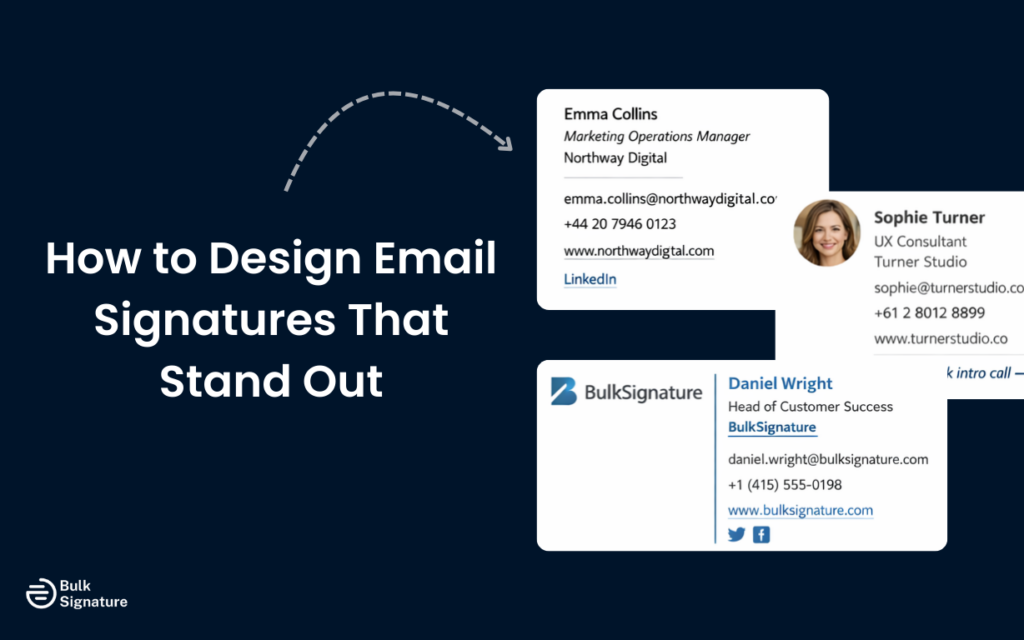
Too often, email signatures are treated as an afterthought with mismatched fonts, broken formatting, outdated job titles, and links that no one ever clicks.
It really is a missed opportunity, because your email signature is seen more often than your website or business card. And when it’s unclear or outdated, it can quietly create the wrong impression, making you seem less professional or credible than you actually are.
The good news? Designing an email signature that really stands out doesn’t require design skills or hours of tweaking. It’s all about keeping things clear, intentional, and easy to read, no matter where your email is opened.
To help, we’ll walk you through our top tips for designing email signatures that not only reinforce your brand, but actually work across devices and email clients (without feeling stiff or overdone).
What Makes a Professional Email Signature Effective?
Let’s start with the basics: a professional email signature serves as a digital business card at the end of every email message. This means it should provide all your essential information in a clear, accessible format.
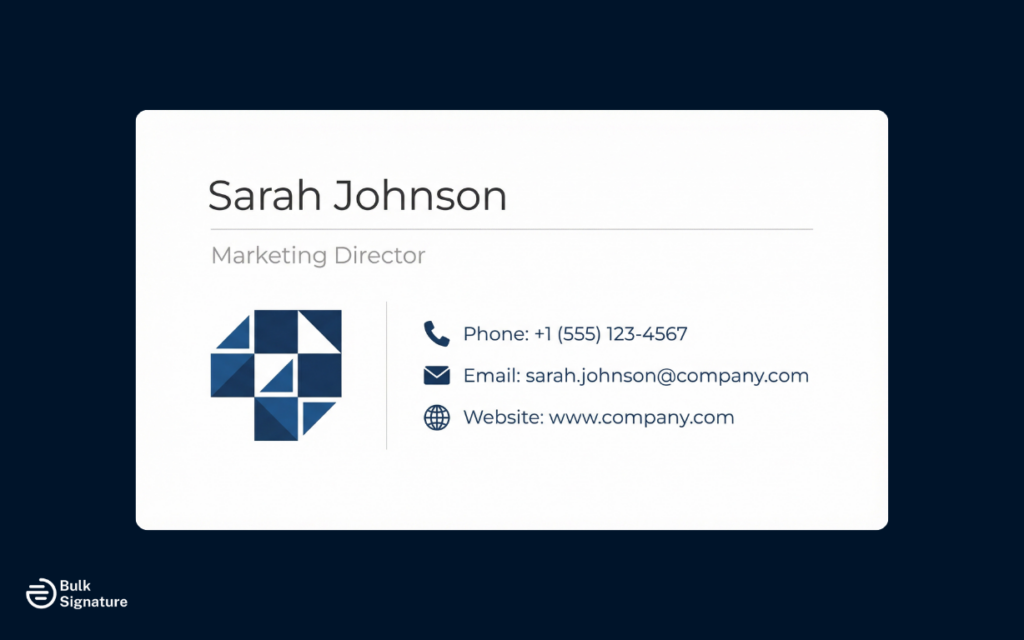
The most effective signatures balance three key priorities. First, they communicate who you are and how to reach you. Second, they reinforce your brand identity through consistent use of brand colors, company logo, and design elements. Third, they remain functional and readable regardless of where they’re viewed, whether that’s on a desktop email client or a mobile device in dark mode.
Essential Elements Every Email Signature Should Include
When you create an email signature, certain elements are fundamental. The following table outlines the key components to include and why they matter.
4 Essential Elements of Every Email Signature
Element | Purpose | Best Practices |
Full name and job title | Establishes your identity and role within the organization. | Use your complete professional name and official title as it appears in your company directory. |
Company name and logo | Reinforces brand recognition and organizational affiliation. | Keep the company logo small and optimized for email, typically between 150-200 pixels. |
Contact details | Makes it easy for recipients to reach you through their preferred channel. | Include your business email, direct phone number, and company website. |
Social media links | Provides additional channels for professional connection. | Only include active, professional social media accounts relevant to your role. More on social media links here: How to Add Social Media Icons to Your Email Signature |
How to Design Email Signatures in Different Email Platforms
When it comes to creating your email signature, it’s important to know that each major email client has its own approach to signature creation and management. Here’s a quick look at how it works in the top email clients.
Creating an Email Signature in Gmail
To create an email signature in a Gmail account:
- Open Gmail and click the gear icon to access settings.
- Select “See all settings” from the dropdown menu, then scroll down to the signature section.
- Click “Create new” to start building your new email signature.
- You can add images, format text, and include social links directly in the signature editor.
Once you’ve designed your signature, scroll to the bottom and click “Save Changes.” You can also choose whether to use the same signature for new messages and replies, or create different versions for each.
Creating an Email Signature in Microsoft Outlook
To create an email signature in Outlook:
- Open Outlook and navigate to the Home tab.
- Click “New Email” to open a new message, then go to the message tab and select “Signature” from the dropdown menu.
- Choose “Signatures” to open the signature editor.
- Click “New” to create a new signature, give it a name, and begin designing.
- You can add your company logo, format text with different font styles, and include contact details.
- In the “Choose default signature” section, you can select which signature to use for new messages and replies.
When finished, click “OK” to save your signature.
Creating an Email Signature in Apple Mail
For Apple Mail users:
- Open Mail and go to Mail > Settings (or Preferences on older versions).
- Click the “Signatures” tab, then select the email account where you want to add a signature.
- Click the plus button to create a new signature.
- Type your signature details in the right panel.
- You can paste formatted text and images.
Pro Tip for Apple Mail: Make sure to test how your signature appears to recipients, as what you see in the editor may not match what others receive.
Design Principles for Email Signatures That Display Correctly
You can design the cleanest, most on-brand email signature in the world, but if it breaks when someone opens it on their phone or in a different email client, it’s not doing its job.
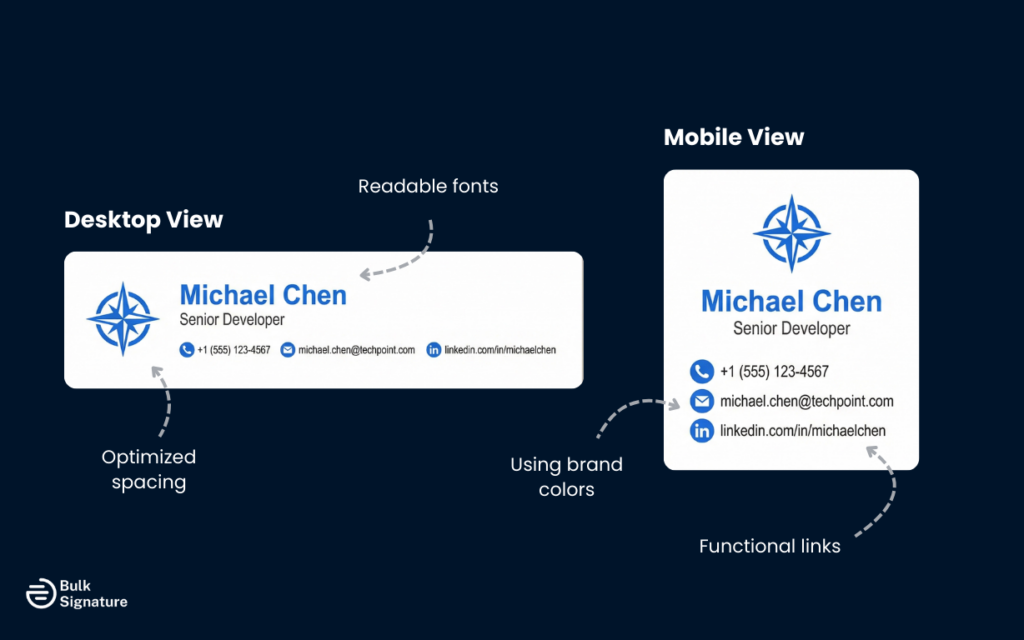
That’s why good email signature design is as much about restraint as it is about style. The following principles focus on keeping your signature readable, reliable, and consistent everywhere it appears, so it looks just as polished in Gmail on mobile as it does in Outlook on desktop.
Size and Dimensions
The optimal size for an email signature is 300-600 pixels wide and 150-200 pixels high. Staying within these dimensions helps your signature display correctly across different screen sizes and email platforms. Signatures that exceed these dimensions may get cut off on mobile devices or cause formatting issues in certain email clients.
Font Selection and Styling
Font styles should be simple and easy to read. Decorative or custom fonts may not render properly across all email platforms, resulting in a broken or unprofessional appearance. Sticking to standard fonts like Arial, Helvetica, or Verdana helps maintain consistency across platforms.
Pro Tip: Keep font sizes between 10 and 12 points for body text, and avoid using more than two different fonts in a single signature.
Color and Contrast
Brand colors should be used sparingly and strategically. While it’s important to maintain brand identity, too much color can make a signature feel cluttered or unprofessional. Consider how your signature will appear in dark mode, which is increasingly common across email clients. Light text on a white background will become invisible in dark mode unless you use solid backgrounds or maintain strong contrast.
Images and Logos
When you add images to your signature, optimization is critical. Large image files can slow email loading times and may be blocked by email clients with strict security settings.
It’s a good idea to compress your company logo and any other images to keep file sizes small, ideally under 50KB. For more visual impact, you might consider animated banners for email signatures, though these should be used sparingly and tested across platforms. It’s also recommended to host any images on a reliable server rather than embedding them directly, as this improves deliverability and display consistency.
Curious about using animation the right way? Read this: How to Create an Animated Banner for Your Email Signature
Common Mistakes When You Design Email Signatures
It’s easy to overthink your email signature design. But the key thing to remember is that an email signature is meant to be clear, consistent, and functional everywhere it appears and for everyone who reads it.
Here are the most common mistakes that tend to get in the way and what to do instead.
Top Email Signature Design Mistakes
Common Mistake | Why It’s a Problem | What to Do Instead |
Overloading with information | Too much content (like quotes, disclaimers, multiple phone numbers, or excessive social links) creates clutter and makes important details harder to find. | Keep your signature concise (under 10 lines) and include only essential contact information that supports professional communication. |
Inconsistent formatting across the organization | Different templates, fonts, colors, and logo usage weaken brand recognition and make the organization look less polished. | Standardize signatures using a shared template or centralized signature management system to keep branding consistent across the team. |
Ignoring mobile display | Signatures designed only for desktop may break or become unreadable on phones and tablets, where many emails are opened. | Test your signature across multiple devices and screen sizes to ensure it remains readable and functional everywhere. |
Using images for text | Images can be blocked by email clients and aren’t accessible to screen readers, making key information invisible to some recipients. | Try follow WCAG (Web Content Accessibility Guidelines) best practices by using live text for names, titles, and contact details, and reserve images only for small, optimized logos or visual accents. |
The Role of Email Signature Templates and Tools
If you’re not very design savvy, creating a personalized signature using a free email signature generator or email signature template can be helpful. These tools provide structure and help avoid common formatting mistakes. However, they do have limitations when it comes to organizational consistency and ongoing management.
When Free Tools Work Well

Free email signature makers and generators can be useful if you need to create an email signature design quickly. These tools typically offer a signature template that you can customize with your own details, then simply copy and paste into your email client.
For freelancers, consultants, or small businesses with just a few team members, this approach is often sufficient for getting a clean, professional-looking signature up and running quickly.
When Free Tools Fall Short

As organizations grow, relying on individual team members to create and upload their own signature using various tools can lead to inconsistencies and fragmented messaging.
For example, when someone changes roles, updates their contact details, or the company rebrands, every signature needs to be manually updated. This becomes increasingly difficult to manage and enforce as businesses rapidly change.
Taking Control of Your Company Branded Email Signature Strategy
For growing organizations, centralized email signature management tools (like BulkSignature) are the only way to make sure:
- Branding stays consistent across every team, role, and department.
- Contact information is always accurate, even as roles and details change.
- Signatures display correctly across all major email clients and devices.
- Updates can be rolled out instantly, without relying on employees to make changes to their own signatures themselves.
If you’re ready to move beyond manual email signature creation and gain centralized control over your organization’s entire email signature strategy, we’d love to help! Book a free demo with BulkSignature today to see how centralized email management can strengthen your professional reputation (and save your admin team a ton of time in the process!)
Frequently Asked Questions About Email Signature Design
What makes a polished email signature?
A polished email signature is clean, consistent, and easy to read. Here are a few key elements…
- Clear hierarchy with your name, title, and company details that’s easy to spot at a glance.
- Simple, web-safe fonts that display correctly across email clients and devices.
- Minimal, intentional use of color that supports your brand without overwhelming the design.
- Essential information only, keeping the signature concise and free from clutter.
What is an email signature editor?
An email signature editor is a tool that helps you create and format an email signature without manually coding or adjusting HTML. Editors often provide templates, formatting options, and previews so you can see how your signature will appear before adding it to your email client. More advanced editors (like BulkSignature) also support centralized management for teams and organizations.
What is the difference between an email signature and an electronic signature?
An email signature is the block of contact information and branding that appears automatically at the end of an email message. It’s used for identification and professional communication, typically including your name, title, company, and contact details.
An electronic signature, on the other hand, is a legal concept used to sign documents digitally. Electronic signatures are designed to indicate consent or approval on contracts and agreements and often carry legal validity.


