
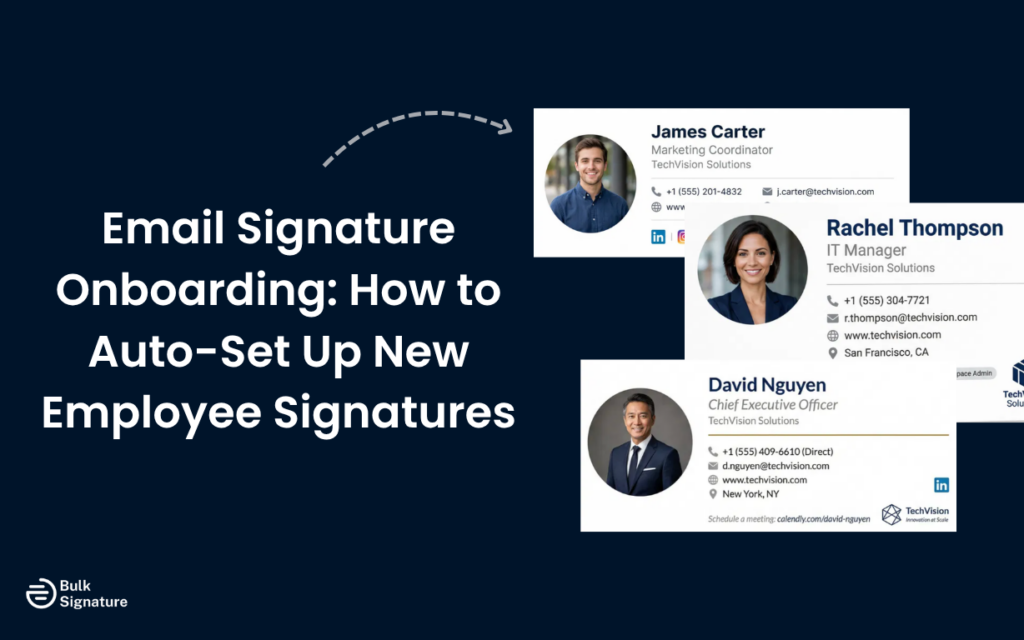
You’ve got a new employee who starts on Monday. By Tuesday, they’ve sent a dozen email messages to clients and partners. And by Wednesday, someone on the team notices their signature is missing, or worse, it’s a half-finished copy-paste job from a colleague’s email with the wrong name and an outdated phone number.
This scenario plays out constantly in organizations that treat email signature setup as something new hires handle themselves during onboarding. It’s low on the priority list, easy to get wrong, and almost impossible to verify without checking each person’s account individually.
The good news is that it doesn’t have to work this way. With the right setup, new employees can have a correctly formatted, fully populated signature from the moment their account is active, without any manual steps required from IT, HR, or the employee themselves.
Sound good? Read on for everything you need to know about how a typical email signature auto-setup works, and what it requires technically. We’ll also briefly cover how to manually set up company-branded email signatures across major email clients, in case you don’t have a centralized email signature management tool.
But first…
Quick Answer: New employee signatures get set up automatically when a signature tool is connected to your Google Workspace or Microsoft 365 directory: the admin creates the user in the directory, the tool picks up the name, title, department and phone, applies the template assigned to that department or organizational unit, and the signature is live before the first email goes out. Nothing is emailed to the new hire, nothing is copied from a colleague. What you need is a clean directory, one or two templates mapped to groups, and an admin install. The steps for BulkSignature and the edge cases (contractors, name changes, shared mailboxes) are below.
Why New Hire Signature Setup Goes Wrong So Often
Let’s be honest, no one starts a new job thinking, “I can’t wait to set up my email signature.”
It’s a small task competing with much bigger priorities in an already busy, slightly overwhelming first week. There are new systems to learn, new people to meet, and new names to remember, and somewhere in the middle of all that is “set up your signature.”
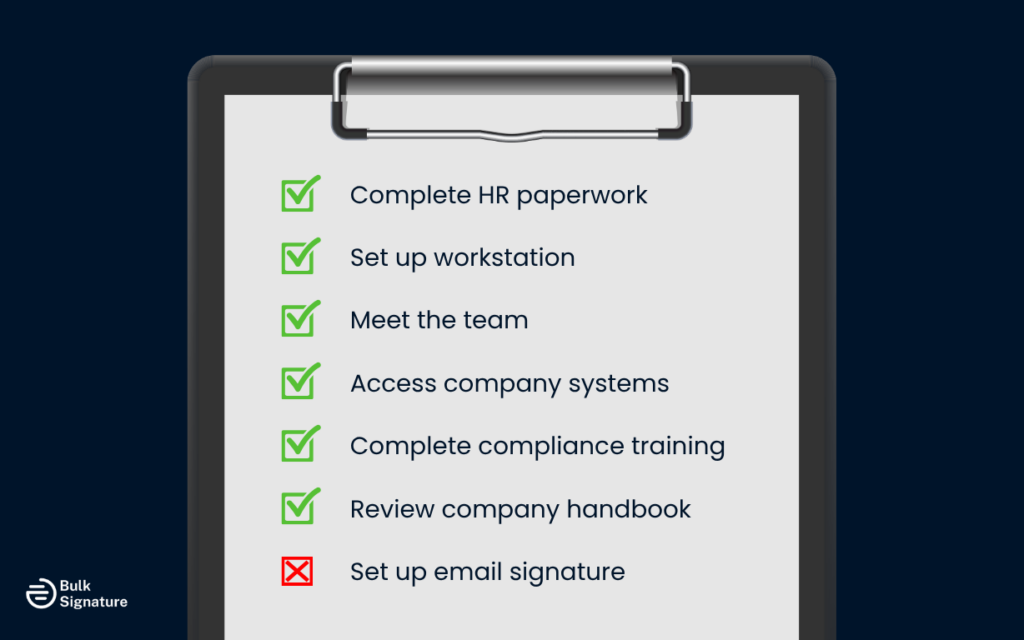
Even when it’s included in an onboarding checklist (even a very detailed email signature onboarding checklist), it doesn’t always get done. Or at least, not properly.
And those who do try to get it right often run into another issue: formatting. For example, copying and pasting an email signature template from a PDF, Word document, or email into an email client almost always introduces errors with fonts, images, and spacing. The result is a signature that looks nothing like the approved template, even when the employee genuinely tried to follow the instructions to a T.
The root cause is the same in both cases: the process relies on individual effort rather than a system.
Before we get into how to automate this process, it helps to understand what a complete, professional email signature should actually include.
What Automatic Signature Setup Actually Looks Like During the Employee Onboarding Process
Automatic email signature setup is when a new employee’s account is created in your directory, and then their email signature is created without any manual action from the employee, IT, or HR.
The way this works in practice depends on the tools you’re using, but the general flow looks like this:
- A new user account is created in your directory, like Microsoft Entra ID, Google Workspace, or another identity provider.
- The email signature management platform detects the new account, pulls the relevant user attributes, such as name, job title, department, and phone number, and generates a correctly formatted signature using the approved template for that role or department.
- The signature is then applied to the user’s email account automatically, either through a server-side mail flow rule or via an API integration with your email platform.
From the new employee’s perspective, their signature is simply there when they send their first email. They don’t need to configure anything. And from IT’s perspective, there’s nothing to chase. The process is triggered by account creation, not by a helpdesk ticket or an email signature onboarding checklist item from HR.
What You Need to Make Auto Email Signature Setup Work
This automated approach isn’t complicated, but it does require a few things to be in place before it can work reliably. Here are the three key things you need to have in place for a smooth rollout.
#1. A Clean, Consistent Directory
A new employee’s email signature is only as accurate as the data it pulls from. If your directory contains incomplete or inconsistent user records, such as missing job titles, inconsistent department names, or phone numbers in different formats, those inconsistencies will show up in the signature.
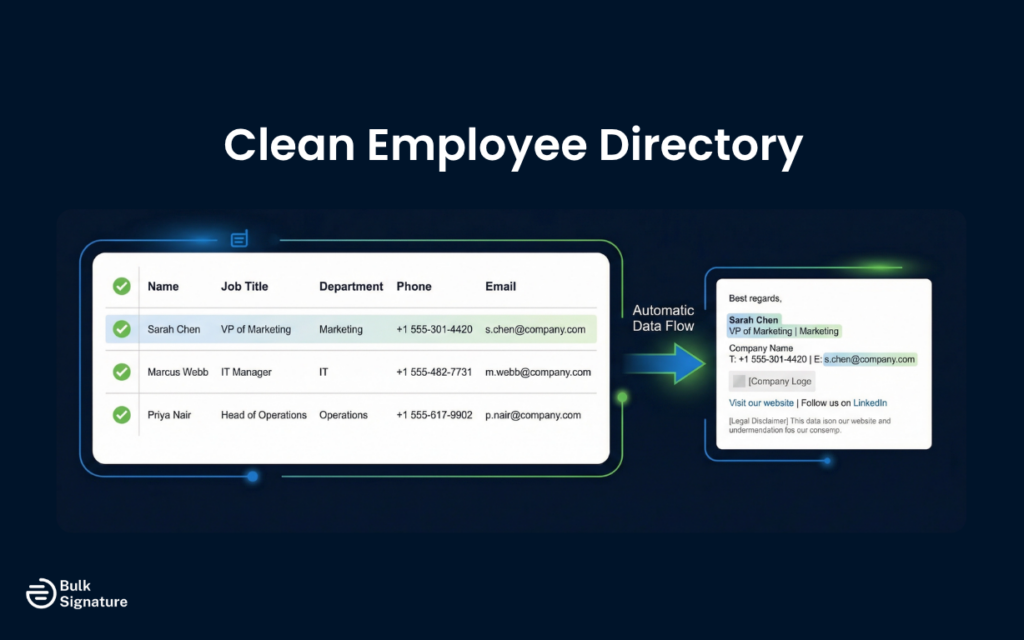
Before implementing automatic setup, it’s worth auditing your directory data. Key fields to check include: full name (formatted consistently), job title, department, direct phone number or extension, office location (if relevant), and email address.
If your directory is managed by HR through an HRIS system, consider whether or not that system can be the single source of truth for these fields, with changes syncing automatically to your directory. That way, when someone gets promoted or changes roles, their signature updates without anyone needing to intervene.
#2. An Email Signature Management Platform
This is the piece that connects your directory to your email platform and handles the provisioning logic. A dedicated email signature management tool like BulkSignature integrates with your directory, monitors for new accounts, and applies the correct template automatically based on the user’s attributes.
Without a dedicated platform, automatic setup isn’t really possible. While you can create mail flow rules that append a generic signature to outgoing emails, those rules can’t pull individual user data or apply role-specific templates without additional tooling.
A good email signature management platform will also give you an email signature editor for making changes centrally, the ability to track clicks on links and banners, and full visibility into which signature version each user is running.
More on importing user data with BulkSignature here:
#3. An Approved Signature Template
Automatic setup requires an approved email signature template to work from. That template needs to be designed, approved, and configured in your signature management platform before new accounts are created.
Most organizations use a single standard template for all employees, with variations for specific departments or seniority levels. For example, the legal team might have a different disclaimer, or executives might have a different layout that includes a headshot.
Pro Tip: Make sure to test email signature templates across all email clients and devices before it goes live. A signature that looks correct in Microsoft Outlook may render differently in Gmail or Apple Mail, so testing is an important step before you rely on it for every new hire.
How to Auto-Set Up New Employee Signatures in BulkSignature
Once these foundations are in place, setting up automatic signatures in BulkSignature is straightforward.
Here’s a step-by-step guide on what to do:
- Start by connecting BulkSignature to your directory (Google Workspace or Microsoft 365). This allows the platform to sync user data in real time.
- Create and configure your signature template using dynamic fields that pull from directory attributes like name, title, and contact details.
- Define assignment rules. For example, you can apply different templates based on department, role, or location.
- Test the signature across different email clients, including Outlook, Gmail, and Apple Mail, to confirm formatting, spacing, and image rendering are consistent.
Once configured, BulkSignature will automatically detect new users and apply the correct signature as soon as their account is created. For existing employees, you can also run a bulk update to standardize signatures across the organization in one step.
Handling Edge Cases in Email Signature Onboarding
Automatic setup handles the standard cases well. But email signature onboarding isn’t always straightforward, and it’s worth thinking through some common edge cases before you go live.
Contractors and Temporary Staff
Not all new accounts belong to full-time employees. For example, contractors, temporary staff, and external consultants may need a different signature template, or no signature at all, depending on your policy.
Most signature management platforms allow you to apply different templates based on user attributes or group membership. Assigning contractors to a specific group in your directory and then mapping that group to a different template or an exclusion rule is usually the most reliable way to handle this.
Employees in Multiple Roles or Departments
Some employees, especially in smaller organizations, span multiple departments or hold more than one role. If your directory reflects this through multiple group memberships, you’ll need to define a priority rule that determines which template takes precedence.
This is worth thinking through before it becomes a problem. A clear policy, such as “primary department takes precedence” or “most senior role determines the template,” makes the configuration straightforward and avoids ambiguity.
Accounts Created Before the Platform Was in Place
If you’re implementing automatic setup for the first time, you’ll have a backlog of existing accounts that were never provisioned through the new system. Most platforms provide a bulk provisioning option that lets you apply the correct template to all existing users in one operation, so you don’t have to manually fix each signature one by one.
This is also a good opportunity to audit your existing signatures and identify anyone who has been using an outdated or non-compliant version.
The Broader Case for Email Signature Automation With BulkSignature
Signature automation for new hires is just one part of a larger argument for centralized signature management. The same logic that makes automatic setup valuable for new hires also applies to ongoing changes across your organization.
For example, when someone gets promoted, their title should update in their signature automatically. Or, when the company rebrands, every signature should reflect the new logo and color scheme without requiring individual action from each employee.
Here’s a quick overview of all the different ways manual and automated email signature management compare across day-to-day scenarios.
Manual vs Automated Email Signature Management
|
Scenario |
Manual Signature Management |
Automated Signature Management |
|
New hire setup |
New hires set up their own signature. |
New employees get branded email signatures on day one. |
|
Handling updates |
Updates require company-wide emails and follow-up. |
Changes are pushed instantly from a central platform. |
|
Brand consistency |
Inconsistencies accumulate over time. |
Templates are enforced uniformly across the organization, ensuring consistency. |
|
Compliance & visibility |
No audit trail or clear oversight. |
Full visibility into signature versions across users. |
|
IT involvement |
IT is pulled into every update cycle. |
IT configures once; the system handles ongoing changes. |
Ready to start automating new hire signatures across your entire organization? Try BulkSignature for free today!
Already using BulkSignature? Head over to our Help Center to fine-tune your setup and make sure everything is running smoothly.
Don’t Have a Centralized Tool Yet? Here’s a Quick Guide to Setting Up Email Signatures in Major Email Clients
Not every organization is set up with centralized email signature management from day one. Many teams are still creating and updating signatures manually across different email clients, which is where a lot of inconsistencies start to creep in.
If that’s your current setup, this section walks you through how to create and manage email signatures in the most commonly used email platforms.
Creating an Email Signature in Microsoft Outlook (On Desktop)
Microsoft Outlook is one of the most widely used email clients in business environments. The process for setting up a signature is fairly straightforward, though the exact steps vary slightly depending on whether your employees are using the classic desktop version or the newer Outlook experience.
In classic Outlook desktop:
- Open Outlook and select a new email to open the compose window.
- Navigate to the Message tab in the ribbon, then select Signature, and choose Signatures from the dropdown.
- In the Signatures and Stationery dialog, click New to create a signature, give it a name, and then use the edit box to build your signature content.
- You can add images (such as your company logo) using the image icon in the edit box. Make sure your image file is saved in an accessible location before adding it.
- Once your signature is created, use the Choose Default Signature section to assign it to new emails and replies or forwards using the forwards drop-down.
- Click OK to save.
In new Outlook (the updated version for Windows 11 and Microsoft 365):
- Open Outlook and click the gear icon (Settings)
- Navigate to Accounts, then Signatures
- Create or edit your signature using the editor
- Assign defaults for new messages and replies/forwards
- Save your changes
Note that signatures configured in Outlook desktop are stored locally and apply only to that installation. If an employee accesses their email account on another device or via the web, they will not automatically have the same signature unless it is managed centrally.
Creating an Email Signature in Gmail
If your organization uses Google Workspace, the primary email client is Gmail.
Here’s a quick look at how to create a new email signature in a Gmail account:
- Open Gmail in a browser and click the gear icon in the top right corner, then select See all settings.
- Under the General tab, scroll down to the Signature section.
- Click Create new and give your signature a name.
- Use the signature editor to add your contact details, job title, company name, company logo, and social media links.
- To add images (like a logo), click the image icon in the editor and upload your image file or link to a hosted image URL.
- Under the Signature defaults section, choose whether this signature should appear on new emails, replies, or both.
- Scroll to the bottom and click Save Changes.
It’s important to note here that Gmail’s built-in signature editor supports basic HTML formatting, but for more complex designs involving social media icons, brand colors, or multiple columns, it’s a good idea to use an external email signature maker or signature generator. You can then copy/paste the resulting HTML code directly into Gmail’s edit box. This is the best way to make sure your signature maintains its intended layout, styling, and branding across different email clients and devices.
Creating an Email Signature in Apple Mail
For employees using Mac computers, Apple Mail is a common choice.
Here’s how to create an email signature in Apple Mail:
- Open Apple Mail and go to Mail in the menu bar, then select Settings (or Preferences on older macOS versions).
- Click the Signatures tab.
- In the left column, select the email account you want to add the signature to.
- Click the + button to create a new signature and give it a name.
- Edit the signature content in the right-hand panel. You can drag and drop an image file directly into the edit area to add a logo.
Similar to Gmail, Apple Mail supports rich text signatures, but it doesn’t handle complex HTML with advanced designs particularly well. If you need a more polished, branded signature, the most reliable workaround is to build the signature externally (using an HTML signature generator or design tool), then paste it into Apple Mail and adjust formatting manually. It’s also worth hosting images (like logos) online rather than embedding large files, which helps prevent display issues.
Creating an Email Signature in Yahoo Mail
Yahoo Mail is less common in business environments, but it’s still used in some organizations.
To create a signature in Yahoo Mail:
- Log in to your Yahoo Mail account and click the gear icon to open Settings.
- Select More Settings and then navigate to Writing email.
- Toggle on the signature option and use the editor to add your signature content.
- Add your name, job title, contact details, and any social media links.
- Changes are saved automatically.
Yahoo Mail’s signature editor is relatively basic. For branded signatures that include a company logo, social media icons, or HTML-based layouts, you will need to paste pre-built HTML code into the source view, if available, or use an external signature generator.
Frequently Asked Questions About Email Signature Onboarding
How quickly can a new employee’s email signature be provisioned automatically?
With a well-configured integration, provisioning can happen within minutes of a new account being created in your directory. The exact timing depends on how frequently your signature management platform syncs with your directory and the deployment method being used. Most platforms offer near-real-time sync for cloud-based directory integrations.
What happens if a new employee’s directory record is incomplete?
If required fields are missing, the signature will either fail to generate or generate with blank fields where the missing data should appear. This is why auditing your directory data and establishing clear data entry standards before implementing automatic setup is important. Some platforms allow you to set fallback values for missing fields, which can reduce the impact of incomplete records.
Can different departments or roles get different signature templates automatically?
Yes. Most enterprise-grade signature management platforms support conditional template assignment based on user attributes like department, job title, or group membership. This allows you to maintain a consistent brand framework while accommodating legitimate differences in signature content across your organization.
What is the difference between a company email signature and a digital signature?
An email signature is a block of text (and often images) that’s included at the end of every email. It typically includes key information like contact details, job titles, company branding, and sometimes banners or social media profiles. An easy way to think of it is like a digital business card that builds trust and reinforces brand identity.
A digital signature, on the other hand, is a type of electronic signature used to sign legal documents. It is designed to verify the authenticity of the sender and protect the integrity of the document. Digital signatures are legally binding and use encryption to confirm that the content hasn’t been altered, serving a similar role to a handwritten signature in formal agreements.
In short, an email signature supports branding and communication, while a digital signature is used for security, identity verification, and legally binding transactions.


