
Quick Answer:
A professional out-of-office email needs five elements:
- Exact dates you are unavailable
- Expected return date
- One-line reason for the absence
- Emergency contact with name and email
- Response timeline — when you will address the backlog
Setup: In Gmail, go to Settings > General > Vacation responder. In Outlook desktop, go to File > Automatic Replies. In Outlook on the web, go to Settings > Mail > Automatic replies. Keep it under 5 sentences, set it the evening before you leave, and remove it the morning you return. Below are 15 ready-to-copy templates.
An out-of-office (OOO) auto-reply is the one email that works while you do not. It tells senders exactly when you will be back, who can help them right now, and whether their message will sit in a queue or get forwarded. Done right, it cuts follow-up volume by up to 40 % because people stop guessing and start acting on the information you gave them.
This guide covers the five elements every OOO message needs, 15 copy-paste templates for every scenario, step-by-step setup in Gmail and Outlook, and a company-wide deployment strategy for IT admins managing hundreds of mailboxes.
What Is an Out-of-Office Email?
An out-of-office email is an automatic reply sent to anyone who emails you while you are away. Most email platforms — Gmail, Microsoft 365 Outlook, and Apple Mail — let you schedule it in advance so it activates and deactivates without manual intervention. The message typically includes your absence dates, a brief reason, and an alternative contact for urgent requests.
You may also see it called an OOO message, vacation responder (Gmail’s term), or automatic reply (Outlook’s term). Regardless of the label, the purpose is the same: manage expectations so senders are not left wondering why you have not responded.
The 5 Elements Every Out-of-Office Message Needs
Skip any one of these and you will generate unnecessary follow-ups:
| Element | Why It Matters | Example |
|---|---|---|
| Dates of absence | Tells senders when to expect silence | “June 2 – June 13” |
| Return date | Tells senders when to expect a reply | “I will be back on Monday, June 16” |
| Reason (brief) | Sets context without oversharing | “on vacation” / “at a conference” |
| Emergency contact | Prevents urgent issues from stalling | “Contact Sarah Lee at sarah@company.com” |
| Backlog note | Reduces “just checking in” follow-ups | “I will respond within 24 hours of my return” |
15 Professional Out-of-Office Email Templates
Copy any template below and replace the bracketed placeholders with your own details. Each one follows the five-element structure above.
1. Standard Vacation Template
Subject: Out of Office – [Your Name]
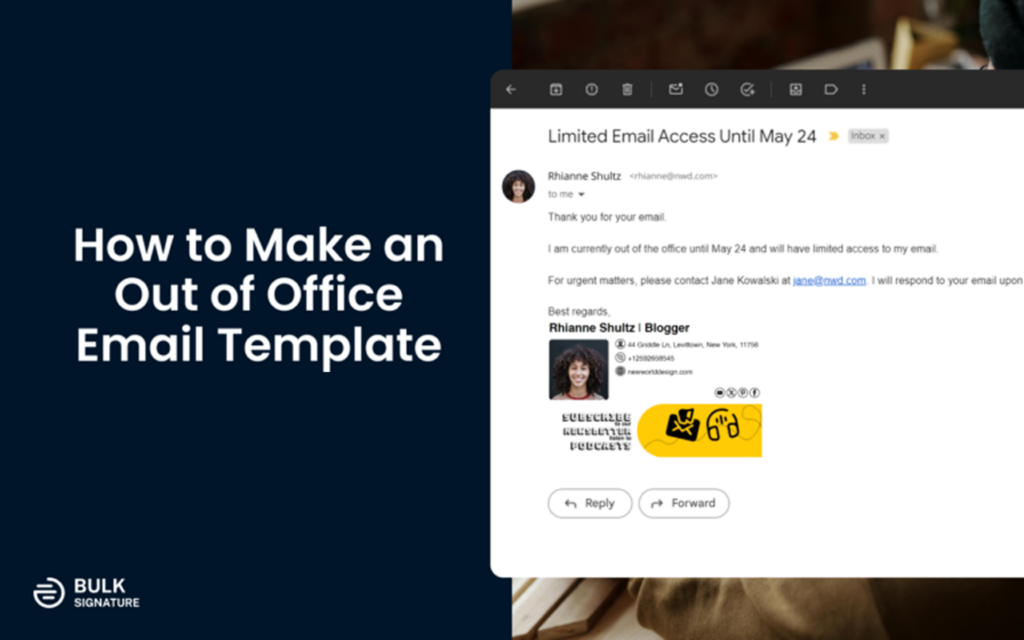
Thank you for your email. I am out of the office from [start date] through [end date] on vacation and will have limited access to email.
For urgent matters, please contact [Colleague Name] at [colleague@company.com].
I will respond to your message within 24 hours of my return on [return date].
Best regards,
[Your Name]
2. Short and Simple Template
Subject: Away Until [Date]
Thanks for your email. I am out of the office until [return date]. For anything urgent, reach [Colleague Name] at [email]. I will reply when I am back.
3. Sick Leave Template
Subject: Out of Office – Unexpected Absence
Thank you for your email. I am currently unavailable due to an unplanned absence and expect to return on [estimated date].
For time-sensitive requests, please contact [Colleague Name] at [email].
I appreciate your patience and will follow up as soon as I am able.
Best regards,
[Your Name]
4. Parental Leave Template
Subject: On Parental Leave – Back in [Month]
Thank you for your email. I am currently on parental leave and will return to work in [month/year].
During my absence, [Colleague Name] ([email]) is handling my responsibilities and can assist with any urgent matters.
I look forward to reconnecting when I return.
Warm regards,
[Your Name]
5. Business Travel / Conference Template
Subject: Attending [Conference Name] – Limited Email Access
Thank you for your message. I am attending [Conference Name] from [start date] to [end date] and will have limited access to email.
For urgent matters, please reach out to [Colleague Name] at [email]. I will respond to non-urgent messages by [return date].
Best regards,
[Your Name]
6. Public Holiday / Company Closure Template
Subject: Office Closed – [Holiday Name]
Thank you for your email. Our office is closed in observance of [holiday name] from [start date] to [end date].
We will resume normal business hours on [return date]. For emergencies, please contact [emergency contact info].
Happy holidays,
The [Company Name] Team
7. Internal-Only Template (For Colleagues)
Subject: OOO – [Your Name]
Hi team, I am out from [start date] to [end date].
[Colleague Name] is covering [your area] while I am away. Slack them or email [email] for anything blocking.
I will clear my inbox on [return date]. Thanks!
8. External / Client-Facing Template
Subject: Out of Office – [Your Name], [Company]
Thank you for getting in touch. I am currently out of the office from [start date] through [end date].
If your matter is urgent, please contact my colleague [Name] at [email] or [phone], who will be happy to assist you.
Otherwise, I will respond to your message promptly upon my return on [return date].
Kind regards,
[Your Name]
[Title], [Company]
9. Sabbatical / Extended Leave Template
Subject: On Extended Leave – Returning [Month Year]
Thank you for your email. I am currently on an extended leave of absence and will not be monitoring this inbox until [return month/year].
For all matters related to [your area], please contact [Colleague Name] at [email]. They have full context on ongoing projects.
I appreciate your understanding.
Best,
[Your Name]
10. Lead Generation / Marketing Template
Subject: Away From Email – Still Open for Business
Thank you for your email. I am out of the office until [return date] and will respond when I return.
In the meantime, you can explore our latest resources at [website URL] or book a demo directly at [booking link].
For urgent inquiries, contact [Colleague Name] at [email].
Best regards,
[Your Name]
11. Half-Day / Partial Availability Template
Subject: Limited Availability Today
Thank you for your email. I am out of the office this [morning/afternoon] and will have limited access to email until [time and timezone].
I will respond to your message later today. For anything urgent, please contact [Colleague Name] at [email].
12. Departing Employee Template
Subject: No Longer at [Company Name]
Thank you for your email. I am no longer with [Company Name] as of [date].
For assistance, please contact [Successor Name] at [email], who has taken over my responsibilities.
I wish you all the best.
Regards,
[Your Name]
For a detailed guide on setting up auto-replies for employees leaving your organization, see our post on how to set up auto-replies for departing employees on Google Workspace.
13. Remote Work / Different Time Zone Template
Subject: Working Remotely – Delayed Responses Possible
Thank you for your email. I am currently working from [location/timezone] and my response times may be slower than usual.
I check email between [hours, timezone]. For anything urgent outside those hours, please reach [Colleague Name] at [email].
14. Casual / Friendly Template
Subject: Out of Office – Recharging!
Hey there! Thanks for your email. I am taking some time off and will be back on [return date].
If something cannot wait, [Colleague Name] ([email]) has my back. Otherwise, I will catch up when I return.
Cheers,
[Your Name]
15. Executive / C-Suite Template
Subject: Out of Office – [Your Name], [Title]
Thank you for your message. I am out of the office from [start date] through [end date].
My executive assistant, [EA Name] ([email]), can help with scheduling and urgent matters. For [department]-related inquiries, please contact [VP/Director Name] at [email].
I will follow up on outstanding items upon my return.
Regards,
[Your Name]
[Title]
How to Set Up an Out-of-Office Reply in Gmail
Gmail calls its out-of-office feature the “Vacation responder.” Here is how to enable it step by step:
- Open Gmail and click the gear icon in the top-right corner.
- Click “See all settings.”
- Scroll down to the “Vacation responder” section under the General tab.
- Toggle “Vacation responder on.”
- Set your first day and last day (check “last day” to auto-deactivate).
- Enter your subject line and message body using one of the templates above.
- Optional: Check “Only send a response to people in my Contacts” if you want to limit who sees it.
- Click “Save Changes” at the bottom of the page.
Pro tip: Gmail only sends the auto-reply once every 4 days to the same sender. If you update your message, it resets the counter and sends the updated version.
How to Set Up an Out-of-Office Reply in Outlook
Outlook uses the term “Automatic Replies” and offers separate messages for internal and external senders — a feature Gmail does not have natively.
Outlook Desktop (Microsoft 365)
- Open Outlook and click File in the top-left corner.
- Click “Automatic Replies (Out of Office).”
- Select “Send automatic replies.”
- Check “Only send during this time range” and set your start and end dates.
- Type your message in the “Inside My Organization” tab (for colleagues).
- Switch to the “Outside My Organization” tab and write a separate message for external contacts.
- Click OK.
Outlook on the Web (OWA)
- Click the gear icon in the top-right corner and select “View all Outlook settings.”
- Go to Mail > Automatic replies.
- Toggle “Turn on automatic replies.”
- Set your time range and compose separate internal and external messages.
- Click Save.
Outlook Mobile (iOS/Android)
- Open the Outlook app and tap your profile icon in the top-left.
- Tap the gear icon to open Settings.
- Select your email account.
- Tap “Automatic Replies” and toggle it on.
- Set the time range and compose your message.
- Tap the checkmark to save.
How to Set Up an Out-of-Office Reply in Apple Mail
Apple Mail does not have a built-in vacation responder. To set one up, you need to configure it through your email provider’s web interface (Gmail, Outlook, iCloud) or use Mail Rules:
- Open Mail and go to Mail > Settings > Rules.
- Click “Add Rule.”
- Set the condition to “Every Message” and the action to “Reply to Message.”
- Type your OOO message in the reply text field.
- Click OK.
Important: This rule only works while Mail is open on your Mac. For reliable auto-replies, configure them through your email provider instead.
Common Out-of-Office Mistakes to Avoid
| Mistake | Why It Hurts | Fix |
|---|---|---|
| Vague dates (“back soon”) | Senders do not know when to follow up | Always state the exact return date |
| No emergency contact | Urgent issues stall until you return | Name a specific person with their email |
| Oversharing personal details | Unprofessional, especially to external contacts | Stick to “on vacation” or “on leave” |
| Forgetting to deactivate | Contacts think you are still away | Set an end date so it auto-deactivates |
| Same message for everyone | Colleagues get too little info; clients get too much | Use separate internal and external messages (Outlook supports this natively) |
| Setting it too late | Early-morning emails on your first day out get no reply | Activate the evening before you leave |
Out-of-Office Subject Line Ideas
Your subject line should tell the sender what is happening in under 10 words. Here are options ranked by formality:
Formal:
- Out of Office – [Your Name]
- Automatic Reply: Away Until [Date]
- Currently Out of the Office – Returning [Date]
Neutral:
- Away From Email – Back on [Date]
- OOO Until [Date]
- Limited Email Access Until [Date]
Casual:
- On Vacation! Back [Date]
- Recharging – Back in Action [Date]
- Out of Pocket Until [Date]
Whichever style you choose, matching it to your email sign-off keeps the tone consistent from subject line to closing.
Deploying Out-of-Office Replies Company-Wide
If you are an IT admin managing dozens or hundreds of mailboxes, setting up OOO replies one account at a time is not practical. Here is how to handle it at scale:
Google Workspace (Admin Console)
Google Workspace does not offer a built-in admin-level vacation responder. To deploy OOO messages across multiple accounts, admins typically use the Gmail API (the users.settings.updateVacation method) or a third-party tool that integrates with Workspace.
Microsoft 365 (Exchange Admin Center)
Admins can set automatic replies for any user through Exchange Online PowerShell:
Set-MailboxAutoReplyConfiguration -Identity user@company.com -AutoReplyState Scheduled -StartTime "06/02/2026" -EndTime "06/13/2026" -ExternalMessage "Thank you for your email..." -InternalMessage "Hi team, I am out..."
This is especially useful for company-wide holiday closures, departing employees, or parental-leave mailboxes.
Keeping Signatures Consistent During Absences
Auto-replies often strip or distort email signatures, which means your branding, legal disclaimers, and contact details may vanish from the one email every sender sees while you are away. BulkSignature solves this by centrally managing email signatures across Google Workspace and Microsoft 365. When an employee activates their OOO reply, BulkSignature ensures the company signature — including logo, legal text, and promotional banners — stays intact without requiring the employee to do anything manually.
Advanced Out-of-Office Tips
Use separate internal and external messages. Internal messages can be informal and include Slack channels or project details. External messages should be polished and include company contact information. Outlook supports this natively; in Gmail, you can approximate it by checking “Only send a response to people in my Contacts.”
Mention your time zone if traveling. A quick note like “I am in GMT+9 and may respond outside your business hours” prevents confusion for global teams.
Sync your OOO status with collaboration tools. Update your status in Slack, Microsoft Teams, and your calendar at the same time you activate your email auto-reply. This way, teammates see you are away regardless of how they try to reach you.
Test before you leave. Send yourself an email from a personal account to confirm the auto-reply fires correctly. Check that the formatting, links, and contact details render properly on both desktop and mobile.


