
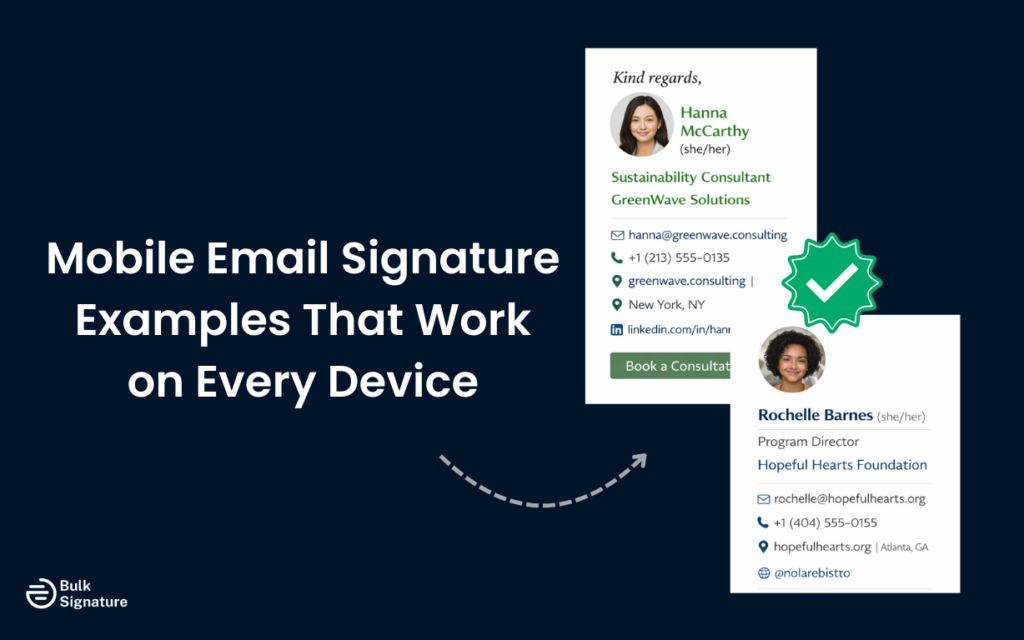
Think of your email signature as a tiny billboard that travels with every message you send. It carries your name, title, brand, contact details, and often your website or social links.
Now imagine that billboard shrinking to the size of a phone screen.
If it’s not designed for mobile, everything gets distorted, causing images to stretch and links to become too small to tap. And since the majority of email views come from mobile devices, that broken layout is now a much bigger issue than it used to be.
So to help you make sure your tiny digital billboard works exactly how it’s supposed to, we’re sharing six different mobile email signature examples that work across devices. We’ll also explain why some designs fail and what you can do to create an email signature that looks professional across all devices and email clients.
Key Principles of Mobile Email Signature Design
Before we look at specific examples, let’s cover the fundamental principles that underpin every effective mobile email signature design.
Principle #1: Keep It Simple and Avoid Clutter
The most important rule for mobile email signatures is simplicity.
Mobile screens have very limited space, so every element in your signature needs to earn its place. That means you should only include essential contact information, such as:
- Your name
- Job title
- Company name
- Mobile number
- Email address.
Additional elements like social media links or a website URL can also be included if they’re important, but be selective with what you include.
Principle #2: Use Appropriate Font Sizes
Text that feels perfectly readable on a laptop can look tiny (almost microscopic) on a phone screen.
As a general rule of thumb, aim for 12–14 pt for your body text and contact details. That keeps everything legible without overwhelming the screen. Your name can be slightly larger (up to 16–18 pt) to create a clear visual hierarchy. It should stand out, but not dominate the entire signature.
Principle #3: Optimize Images for Mobile
If you include a company logo, profile picture, or banner in your mobile signature, make sure it’s appropriately sized. Images should be no wider than 300-400 pixels to avoid overwhelming small screens. It’s also smart to compress images and keep file sizes under 50KB. Smaller files load faster, especially for recipients on cellular connections, and they’re less likely to trigger formatting issues in certain email clients.
Principle #4: Use a Single-Column Layout
Multi-column layouts that work well on desktop often break apart on mobile devices. Stick to a single-column layout that stacks elements vertically. This helps your signature display correctly regardless of screen size.
A general formula for mobile signatures is: name, job title, company name, mobile phone number, email, and website, each on its own line.
This vertical structure is easy to read and works on just about any device.
Principle #5: Make Links Tappable
On mobile devices, people interact with your signature by tapping, not clicking. Make sure any links in your signature (like phone numbers, email addresses, and website URLs) are large enough to tap easily. Small, closely-spaced links are frustrating on touchscreens and can lead to accidental taps.
Principle #6: Test Across Multiple Devices
Don’t assume your signature will look the same on every device. Take time to test it on lots of different devices like iPhones, Android phones, tablets, and different email apps.
It’s also important to pay special attention to how your email signature looks in dark mode, which is increasingly popular on mobile devices. When checking for dark mode, review things like text contrast, logo visibility, and background behavior to make sure nothing disappears or looks distorted when colors change.
Email Signature Template Examples for Mobile Devices
Now that we’ve covered the core design principles, let’s look at specific examples that work well across different devices and use cases.
Example 1: Minimalist Text-Only Signature

|
Sarah Johnson Marketing Director Acme Corporation Phone: (555) 123-4567 Email: sarah.johnson@acme.com Web: www.acme.com |
This simple, text-only signature works beautifully on mobile. There are no heavy graphics or complicated layouts, just the essentials, stacked neatly in a clean vertical format that’s easy to scan in your email message.
Because it’s lightweight and straightforward, it loads quickly and displays consistently across most mobile devices and email apps. Sometimes, simple really is the smartest choice.
Example 2: Professional Signature with Logo

|
Michael Chen Senior Sales Executive TechStart Solutions Mobile: +1 (555) 987-6543 Email: m.chen@techstart.com Website: www.techstart.com LinkedIn: linkedin.com/in/michaelchen |
This version adds a small company logo for brand recognition without overwhelming the screen. It’s sized thoughtfully (around 200px wide), so it supports your branding instead of taking over the entire email.
Everything else is stacked in a clean, single-column layout, making the contact details easy to read at a glance. There’s also just one social media link included; enough to guide people where you want them to go, but not so many that the signature starts to feel crowded.
Example 3: Signature with Call to Action

|
Jennifer Martinez Customer Success Manager CloudSoft Inc. Direct: (555) 234-5678 Email: jennifer@cloudsoft.com Schedule a call: calendly.com/jennifer Helping businesses succeed with cloud solutions |
This signature features a clear call to action (like a scheduling link), which is especially helpful for sales teams and client-facing roles.
The short tagline also adds personality without making the signature feel crowded or promotional. Everything is spaced comfortably, and the font sizes are easy to read on a small screen, so it feels polished and intentional.
Example 4: Compact Executive Signature

|
David Park | CEO Innovation Labs M: +1.555.345.6789 E: david@innovationlabs.com “Building the future of technology.” |
This executive-style signature keeps things tight and efficient by using subtle pipe separators to organize information without spreading everything out vertically. It saves space while still staying easy to read, which is super important on a small screen.
There’s also a short inspirational quote that adds a personal touch, but it’s brief enough that it doesn’t dominate the signature or push key details too far down. It’s a smart option for senior leaders who want to sound human and approachable while keeping their signature polished and to the point.
Example 5: Creative Industry Signature

|
Alex Rivera Creative Director | Pixel Perfect Design Let’s create something amazing! Phone: 555.456.7890 Email: alex@pixelperfect.com Portfolio: alexrivera.design |
This signature works especially well in creative industries, where personality matters just as much as professionalism. The small profile photo makes it feel more personal and approachable, like there’s a real person behind the email and not just a title and phone number.
Example 6: Support Team Signature
|
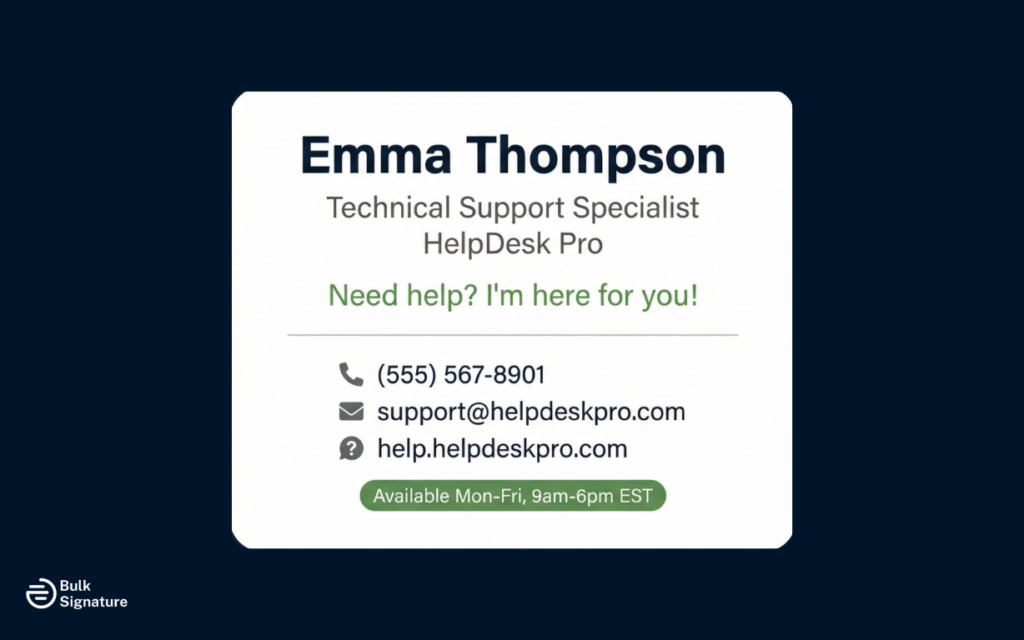
Emma Thompson Technical Support Specialist HelpDesk Pro Need help? I’m here for you! Support Line: (555) 567-8901 Email: support@helpdeskpro.com Help Center: help.helpdeskpro.com Available Mon–Fri, 9am–6pm EST |
This support-focused signature highlights multiple ways to get in touch, so customers aren’t left guessing about what to do next. The listed availability hours are also a helpful addition, as they set clear expectations by letting people know exactly when they can expect a response.
How to Create a Mobile Email Signature
The steps to create a mobile email signature vary depending on your email platform, but the general process is similar across most mobile email clients.
Let’s take a quick look at how to set up and optimize your signature on the most common platforms (iPhone, Android (Gmail), and Microsoft Outlook mobile), so you can get it done in just a few minutes and avoid formatting issues later.
Remember: mobile apps offer fewer formatting options than desktop versions. That’s actually a good thing. It forces you to keep your signature clean, simple, and easy to read, which is exactly what works best on smaller screens.
How to Set Up a Mobile Email Signature on iPhone, Android, and Outlook
|
Platform |
Steps to Create a Mobile Email Signature |
|
iPhone (Apple Mail) |
1. Open Settings and scroll down to Mail. 2. Tap Signature. 3. Choose whether to use the same signature for all accounts or separate ones. 4. Type your signature in the text box (formatting options are limited, so keep it simple). 5. The signature saves automatically. Send a test email to verify it looks correct. |
|
Android (Gmail App) |
1. Open the Gmail app and tap the menu icon (☰). 2. Tap Settings, then select your email account. 3. Scroll down and tap Mobile Signature. 4. Type your signature and tap OK. 5. Send a test email to confirm it displays correctly. |
|
Microsoft Outlook Mobile |
1. Open the Outlook app and tap your profile icon. 2. Tap the gear icon to open Settings. 3. Scroll down and tap Signature. 4. Toggle the signature on and type it into the text box. 5. Click Save or navigate back to save automatically. |
The Power of Email Signature Software
If you want something more polished than plain text (especially if you’re adding logos, banners, or team-wide branding), email signature design software can make life a lot easier.
Instead of manually formatting signatures on every device, these tools let you design everything in a visual editor. You can control fonts, spacing, logos, and calls to action in one place, then roll it out across your entire team. No more copy-paste errors and mismatched designs.
Another big advantage? Many of these platforms automatically adjust signatures for mobile screens. That means your layout stays clean, your professional images stay proportionate, and your links stay tappable across various devices.
Maintaining Brand Consistency Across Every Device at Scale
Platforms like BulkSignature take things one step further with centralized email signature management. Instead of relying on each employee to update their own signature correctly, you can control everything from a single dashboard, including branding elements, job titles, promotional banners, and even legal email disclaimers.
That kind of control is especially valuable for growing teams. When someone gets promoted, joins the company, or changes contact details, updates can be pushed instantly without chasing people down. It keeps your brand consistent, your messaging aligned, and your signatures looking professional on every device.
Ready to see how easy it is to standardize email signatures across your entire organization? Book a free BulkSignature demo today!
Frequently Asked Questions About Creating Email Signatures for Mobile
What should a cell phone email signature include?
A mobile email signature should include only the essentials:
- Your full name
- Job title
- Company name
- Phone number
- Email address
- Website (optional)
You can add one social media link or a scheduling link if it serves a clear purpose, but avoid overcrowding the layout.
What makes a professional email signature template mobile-friendly?
At a minimum, a professional mobile email signature template should:
- Use a single-column layout so everything stacks neatly on small screens.
- Keep font sizes around 12–14 pt so people don’t have to squint.
- Avoid large or heavy images that slow down loading times or overwhelm the layout.
- Stick to widely supported, standard fonts that display consistently across devices.
- Make phone numbers and links easy to tap (no tiny, crowded text).
Here’s a simple test: open your email on your phone. If you have to zoom in to read it, scroll too much to find your contact info, or struggle to tap a link, it needs refining.
If it feels easy to read and interact with, you’re on the right track.
What are the best mobile email signatures?
The best mobile email signatures don’t try to do too much. They’re simple, uncluttered, and easy to scan at a glance. Text-only signatures often perform best, but thoughtfully sized logos and a single call to action can also work well.


