
Acme Group sends email from three domains: acme.example for the main brand, acme-de.example for Germany and brightlabs.example for Bright Labs, its second brand. Each needs its own logo, address and legal footer. Until now, a Global signature in BulkSignature went to everyone. To give Bright Labs its own signature, an admin filtered the people on brightlabs.example and ticked them by hand, and that list missed everyone who joined later.
With Global signature by domain, a Global signature can now cover only the domains you choose. Every email gets the Global of the domain it is sent from, aliases included, and people who join on that domain get it without anyone assigning it. It works for Google Workspace and Microsoft 365, and your current Global keeps working exactly as before until you publish your first one.
What is Global signature by domain?
When you create a Global signature, you now choose how it applies: Global, for everyone, or Specific domains. A Specific domains Global covers only the domains you pick for it.
- One Global can hold several domains, for example acme.example and acme-de.example under one Acme design.
- One domain belongs to one Global only. A domain that another Global already holds shows as "Used by …" and can't be picked.
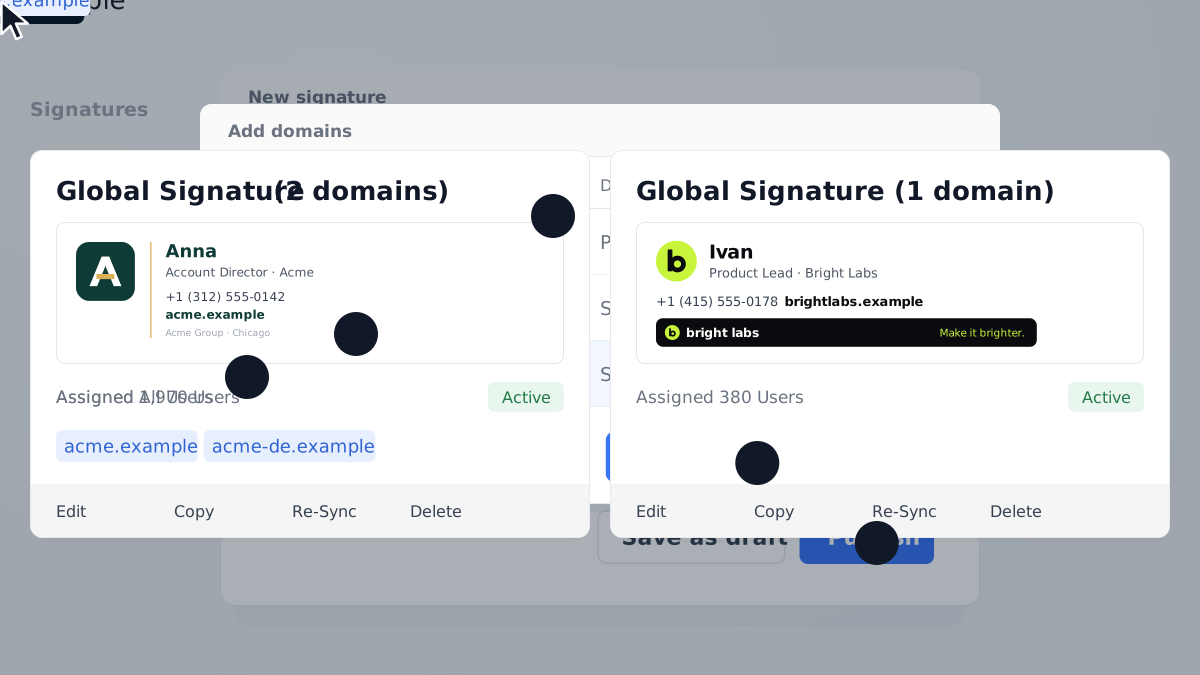
- There is no name to type. The dashboard names each Global after its list, such as "Global Signature (2 domains)".
It is not a new level. The order stays the same: User specific, then Group, then Org unit, then Global. A Global by domain is simply the default for everyone on that domain.
Which signature does each email get?
The address an email is sent from decides, not the person who sends it.
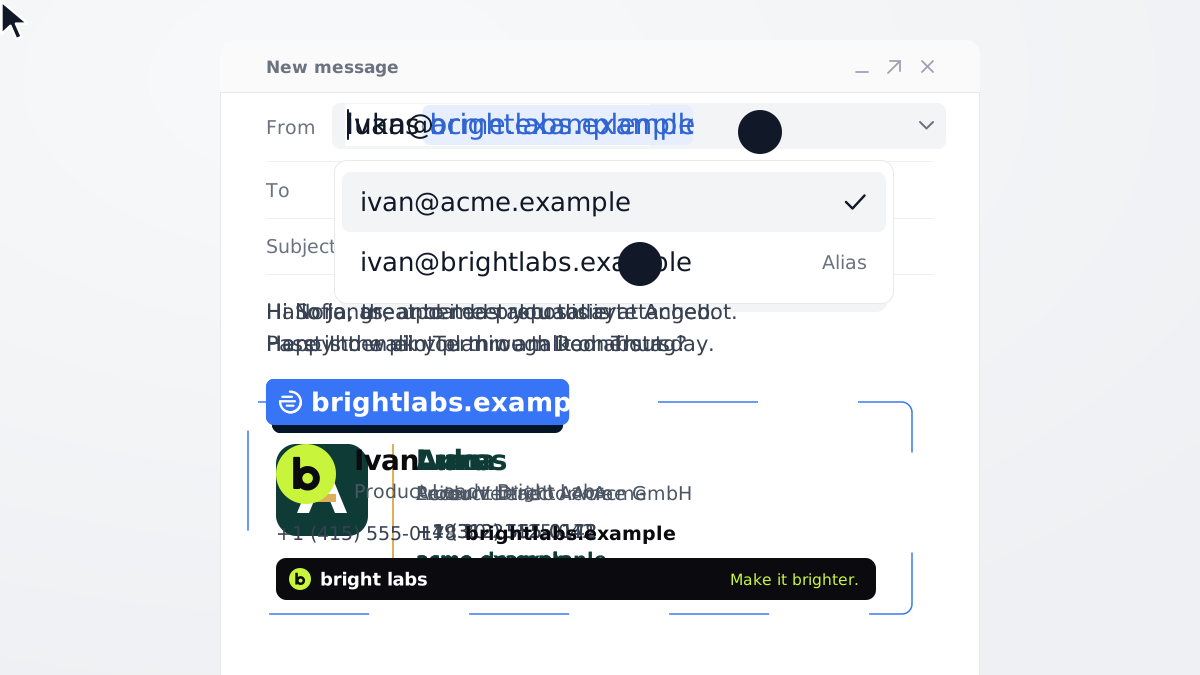
Ivan works at Bright Labs. His main mailbox is ivan@acme.example, and he also sends from the alias ivan@brightlabs.example. Once brightlabs.example has its own Global, his emails from ivan@brightlabs.example carry the Bright Labs signature. His emails from ivan@acme.example carry the Global that holds acme.example.
Aliases count. An alias uses its own domain, not the domain of the mailbox it belongs to, so the signature follows the brand in the From line.
Why does it matter?
It removes the most common way the wrong brand ends up on an email.
- The right brand on every email. Each domain gets its own logo, address and legal footer, chosen by the address the email goes out from.
- Aliases included. People who send for two brands from one mailbox get the right signature on each address.
- No lists to keep. You don't group people by domain or tick them by hand. The domain is the list.
- New people are covered. Someone who joins on brightlabs.example gets the Bright Labs signature with no assignment.
Still deciding what should differ between your brands? Our guide to email signatures for multiple domains, brands and subsidiaries covers the groundwork, from legal footers to mergers.
How do you set it up?
Acme's existing Global covers all three domains. Giving Bright Labs its own signature takes three steps.
- Choose Specific domains. Add a signature and design it. Under "Who gets this signature set?", pick Global. Then, under "How should domains apply?", choose Specific domains.
- Add the domain. Click "Add Domain" and tick brightlabs.example in the Add domains list. The list shows each domain with its number of users, and whether it is your primary or a secondary domain. Click "Add Selected Domains".
- Publish. Everyone on brightlabs.example gets the Bright Labs signature, unless a more specific signature applies to them.
Publishing takes brightlabs.example from the existing Global, which keeps acme.example and acme-de.example. The dashboard now calls it "Global Signature (2 domains)". From then on, each Global holds a fixed list of domains that you edit.
In Google Workspace, BulkSignature installs the new signature in Gmail for the people on that domain. In Microsoft 365, the BulkSignature Outlook add-in adds it from each person's next email.
Not ready to publish? You can save a Specific domains Global as a draft before you choose any domain. It needs at least one domain to be published.
What happens when someone new joins?
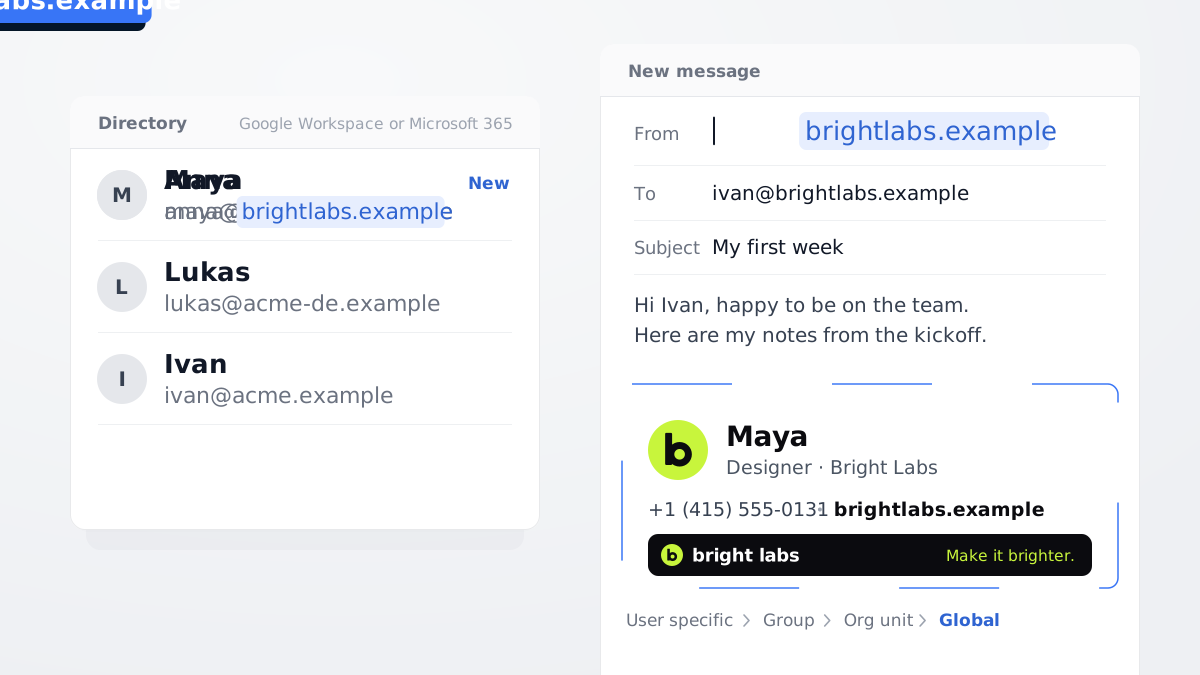
Nothing, on your side. A person who appears in your directory on a domain gets that domain's Global without anyone assigning it.
- Google Workspace: at the next signature sync, or when you re-sync the Global.
- Microsoft 365: at their next email. The signature is chosen when they send.
More specific signatures still win. A Global by domain is the default for a domain, so a User specific, Group or Org unit signature that applies to someone comes first, as it does today.
Which domains can you choose?
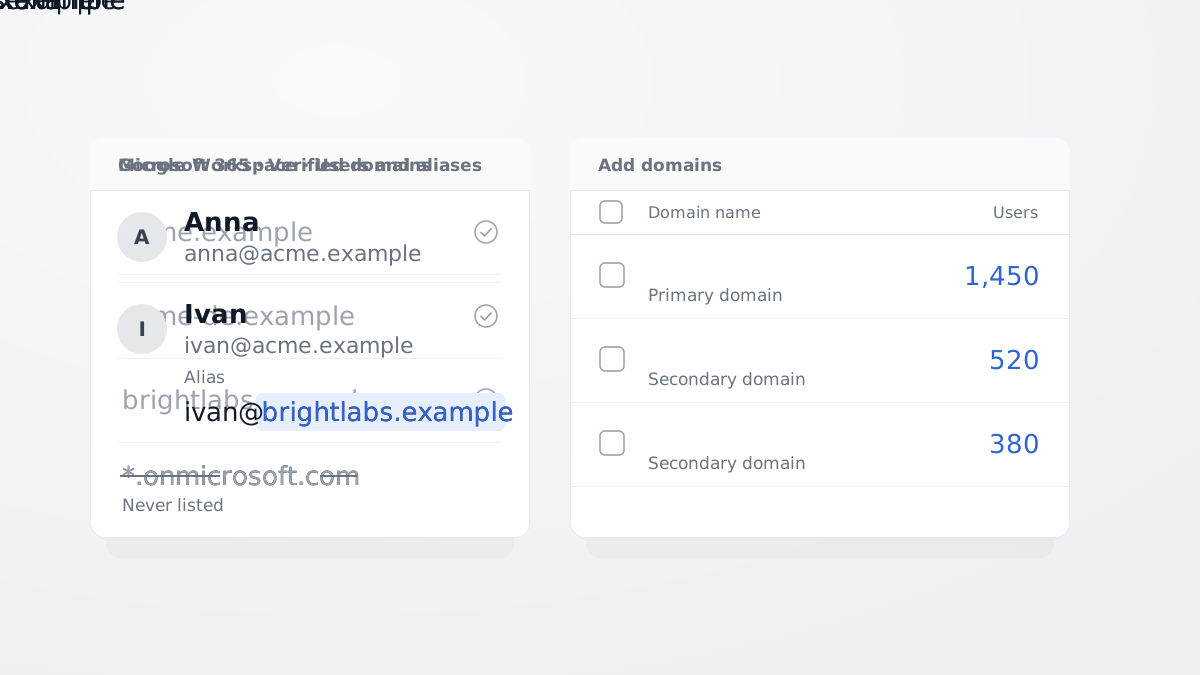
Every domain your company sends from counts as a company domain, and the Add domains list offers it.
- Microsoft 365: every verified custom domain, with aliases imported on all of them. The .onmicrosoft.com domain is never listed.
- Google Workspace: your domains, including the ones people use only through aliases.
The choice between Global and Specific domains appears once your company has two or more domains with users. With one domain, your Global works as it always has.
What should you check before you publish?
- Your current Global keeps working. It covers every domain, exactly as before, until you publish your first Specific domains Global.
- A domain in no Global gets no Global signature. Once you use Specific domains, each Global has a fixed list. When you add a new domain in Google Workspace or Microsoft 365, add it to a Global too.
- More specific signatures still win. If you once gave a brand its signature by ticking everyone on its domain into a User specific signature, those people keep it. Delete that signature to move them to the domain's Global.
- To move a domain, free it first. A domain that another Global holds shows as "Used by …". Remove it from that Global, then add it to the new one, one right after the other: in between, the domain is in no Global.
FAQ
Can I give each domain its own email signature automatically?
Yes. Create a Global signature, choose Specific domains and pick the domains it covers. Everyone who sends from those domains gets it, including people who join later, with no hand assignment.
Do email aliases get the signature of their own domain?
Yes. The sending address decides, so an email from ivan@brightlabs.example gets the brightlabs.example Global even when Ivan's main mailbox is on acme.example. In Gmail, an alias first has to be added as a "Send as" address. See email aliases and domain aliases.
What happens to our existing Global signature?
Nothing, until you publish your first Specific domains Global. That publish takes the chosen domains from the existing Global, which keeps the rest under a name such as "Global Signature (2 domains)".
Does it work in Gmail and Outlook?
Yes, for Google Workspace and Microsoft 365. It works in Gmail, where BulkSignature installs the signature, and in Outlook through the BulkSignature Outlook add-in. It also works in the Chrome extension, the desktop app and, for companies that connected it, Front.
What happens to people on a domain that is in no Global?
They get no Global signature until you add their domain to one. A User specific, Group or Org unit signature that applies to them still does.
Give each brand its own signature
Already using BulkSignature? Open your dashboard, add a Global and choose Specific domains. New to it? Book a demo, or read the setup guides for Microsoft 365 and Google Workspace.


