
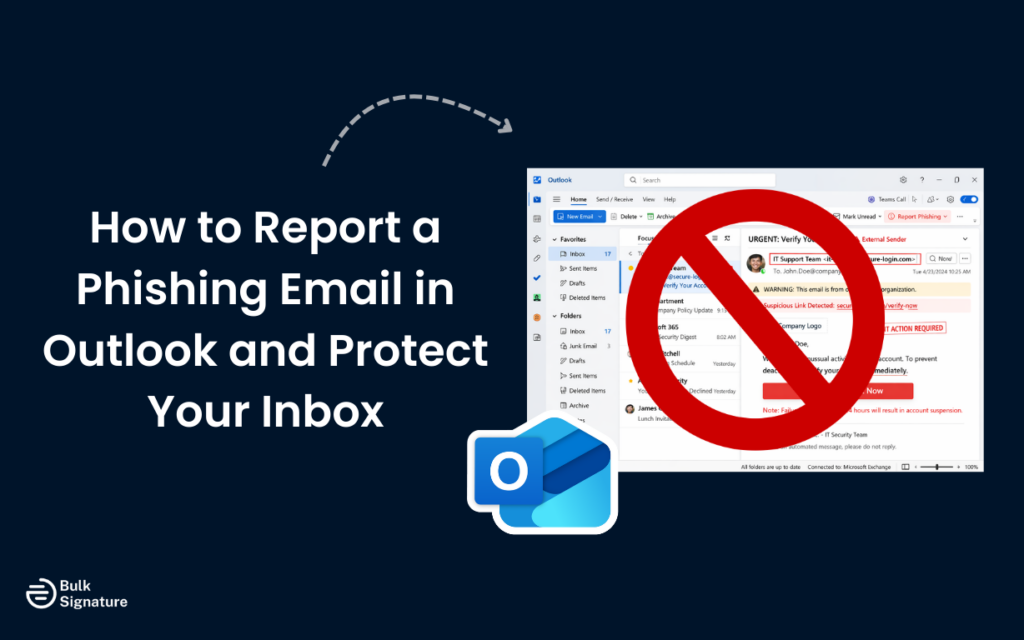
Ever opened an email and thought, “Wait… is this legit?”
The logo looks right, and the sender’s name rings a bell. But still… something feels off.
You’re not imagining it. Phishing emails are getting smarter. And unfortunately, one click on the wrong link can expose passwords, financial details, and even your company’s internal systems.
So to help you avoid becoming the next phishing victim, read on for our complete guide on how to report a phishing email in Outlook (desktop, web, and mobile), how to identify phishing red flags before you click, and what actually happens after you hit the report button. More importantly, we’ll cover how that one simple action can help strengthen spam filters and protect your coworkers, too.
Understanding Phishing and Why Reporting Junk Matters
In the most simple terms, phishing is:
- A type of cyberattack where criminals send fraudulent emails that appear to come from legitimate sources.
The goal with phishing emails is to trick recipients into taking actions that compromise their security (like entering a password, sharing financial information, or downloading malware).
Phishing emails can take many forms. Some impersonate banks or financial institutions, others pretend to be from your IT department or a trusted colleague, and some even masquerade as shipping notifications or invoice requests. The common thread is deception: these messages are designed to look real enough to fool you into letting your guard down.
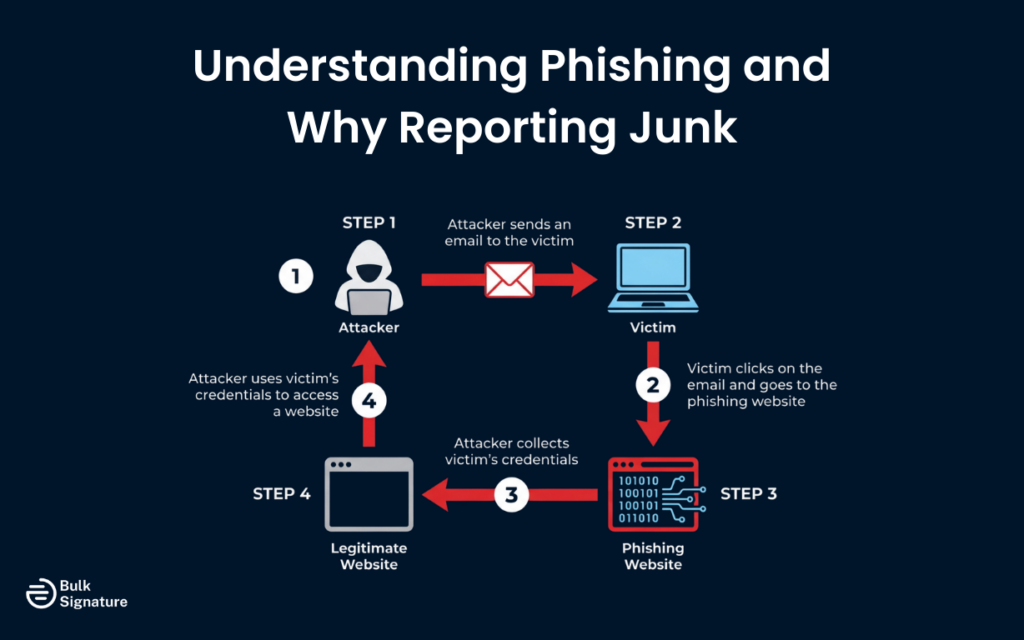
When you report a phishing email in Outlook, the suspicious message is cleared out of your inbox. That report then goes on to help Microsoft improve its spam filters and gives your IT team data they can use to block similar threats. In workplaces using Microsoft 365 or Exchange Online, reported emails can also be analyzed to strengthen security rules and stop the same scam from reaching someone else.
Read more on phishing attacks here: How to Prevent Email Communication from Phishing Attacks
How to Identify a Phishing Email
Before you can start reporting suspicious emails, you need to know how to identify them. The tricky part, though, is that phishing emails are specifically designed to blend in. They’re made to look normal and routine. But once you know what to look for, the red flags are a lot easier to catch.
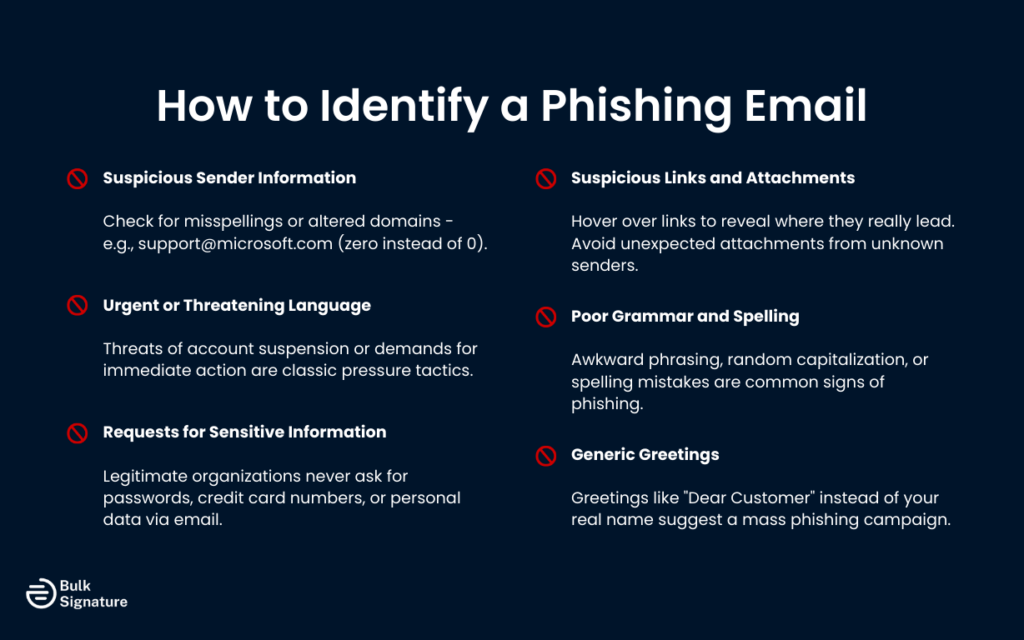
Here are the most common signs of a phishing email.
Suspicious Sender Information
Check the sender’s email address carefully. Phishing emails often come from addresses that look similar to legitimate ones but contain small variations, such as extra characters, misspellings, or different domains. For example, an email claiming to be from “support@microsoft.com” might actually come from “support@micros0ft.com” (with a zero instead of the letter O).
Urgent or Threatening Language
Phishing emails often create a sense of urgency to pressure you into acting quickly without thinking. Messages that threaten account suspension, demand immediate payment, or claim there’s a security issue requiring your immediate attention will always be red flags.
Requests for Sensitive Information
Legitimate organizations will never ask you to provide passwords, credit card numbers, or other sensitive information via email. If an email asks you to enter your password, verify your account details, or provide financial information, it’s almost certainly a phishing attempt.
Suspicious Links and Attachments
Hover over any links in the email (without clicking) to see where they actually lead. If the URL doesn’t match the supposed sender or looks suspicious, don’t click it. Similarly, be wary of unexpected attachments, especially if the email wasn’t expected or comes from an unknown sender.
Poor Grammar and Spelling
Many phishing emails are filled with awkward phrasing, random capitalization, or obvious spelling mistakes. Sentences may sound slightly “off,” like they were rushed or translated poorly.
That said, scammers are getting better. Not every phishing email is full of typos anymore. But if the message reads strangely or feels unprofessional (especially if it claims to be from a major company), that’s a red flag worth paying attention to.
Generic Greetings
Take a look at how the email addresses you.
Does it say “Dear Customer” or “Dear User” instead of your actual name? That’s a common phishing tactic. Scammers send the same message to thousands of people at once, so they keep the greeting vague.
Most legitimate companies (especially ones you already have an account with) will use your real name. So if the greeting feels impersonal or oddly generic, that’s another clue something isn’t right.
Report Phishing Emails in Outlook Desktop
To help you act quickly when something doesn’t look right, Microsoft Outlook provides a built-in report button that makes it easy to report phishing emails.
It’s important to bear in mind, though, that the exact steps vary slightly depending on your version of Outlook and whether your organization has configured additional reporting options. Because of that, the button name or its placement may look a little different on your screen.
Using the Built-In Report Message Button
Most versions of Outlook include a report message button on the ribbon (the toolbar that runs across the top of the Outlook window).
Here’s how to use it.
- Open Microsoft Outlook on your computer and locate the suspicious email in your inbox or any other folder.
- Select the phishing email by clicking on it once. Do not open the email or click any links or attachments inside it.
- Look for the report message button on the home tab of the ribbon. The button may be labeled “Report Message,” “Report Phishing,” or simply “Report,” depending on your version of Outlook.
- Click the report message button. A menu will appear with options such as “Phishing,” “Junk,” or “Not Junk.”
- Select “Phishing” from the menu. Outlook will move the message to your junk email folder, and send a copy to Microsoft for analysis.
Once you’ve reported the message, you’ll see a confirmation message indicating that the email has been reported. The message will then typically be moved to your junk email folder automatically.
Reporting Phishing in Organizations Using Microsoft 365
If your organization uses Microsoft 365 with Exchange Online, your IT admins may have configured a dedicated reporting mailbox. When you report phishing using the report message button, a copy of the suspicious email is sent to this reporting mailbox, where your security team can review it and take appropriate action.
In some organizations, you may see additional options when you click the report button, such as the ability to add a note explaining why you’re reporting the message. This helps your IT team understand the context and respond more effectively.
What Happens After You Report Phishing
When you report a phishing email in Outlook, several things happen:
- The message is moved to your junk email folder where it will eventually be deleted (unless you choose “Not Junk”).
- A copy is submitted to Microsoft for analysis.
- If configured, a copy is sent to your organization’s reporting mailbox.
- Microsoft logs the information and uses it to improve its spam and phishing filters.
- Your IT team (if applicable) can review the message and take protective measures.
Note that reporting a phishing email doesn’t guarantee that similar messages will be automatically blocked in the future, but it significantly improves the chances that future versions of the same scam will be flagged faster.
Report Phishing Emails in Outlook on the Web
If you access Outlook through a web browser (Outlook on the web), the process for reporting phishing is slightly different but just as straightforward.
Here’s what to do:
- Sign in to Outlook on the web and navigate to your inbox.
- Locate the suspicious email. You can select it by clicking the checkbox next to the message, or you can open it (though it’s safer to report without opening if you’re certain it’s phishing).
- Look for the report button in the toolbar at the top of the message list. It may appear as a flag icon or a button labeled “Report.”
- Click the report button in Outlook and select “Phishing” from the dropdown menu.
- The message will be reported and moved to your junk email folder. You may see a confirmation notification.
In some versions of Outlook on the web, the “Report” option might be tucked under the three dots (the “More options” menu). If you don’t see it right away, that’s usually where it’s hiding.
Keep in mind that the layout can look slightly different depending on your organization’s setup and the version of Outlook you’re using, so don’t worry if your screen doesn’t match someone else’s exactly.
How to Report a Phishing Email in the Outlook Mobile App
The Outlook app for iOS and Android also includes the ability to easily report phishing emails, though the interface is slightly different from the desktop and web versions.
Here’s what the reporting process looks like:
- Open the Outlook app on your mobile device and navigate to the suspicious email.
- Open the email or select it from your message list.
- Tap the three dots icon (more options) in the top right corner of the screen.
- Scroll through the menu and look for an option labeled “Report” or “Report Phishing.”
- Tap “Report Phishing” and confirm your selection.
- The message will be reported and moved to your junk email folder.
Keep in mind that the mobile app doesn’t always have as many reporting features as the desktop version. If your organization hasn’t enabled mobile reporting options, you might see fewer choices in the app.
If that’s the case, you can always report the message later from your desktop for more advanced options.
Additional Ways to Protect Your Inbox from Phishing
Reporting phishing emails is an important step, but it’s not the only way to protect yourself. Here are additional strategies to keep your inbox safe.
Enable Outlook’s Built-In Protections
Microsoft Outlook comes with several built-in security features that can help protect you from phishing attempts. If you haven’t already, it’s a good idea to make sure these features are turned on and properly configured.
- Junk Email Filter: Outlook’s junk email filter automatically identifies and moves suspected spam and phishing messages to your junk email folder. You can adjust the filter’s sensitivity in Outlook settings.
- Safe Links: If your organization uses Microsoft 365, the Safe Links feature can protect you by checking URLs in emails and blocking malicious links in real time.
- Safe Attachments: This feature scans email attachments for malware before you open them, providing an extra layer of protection against malicious files.
Together, these built-in protections act as a safety net, giving your inbox multiple layers of defense against phishing attempts and malicious links.
Be Cautious with Links and Attachments
If an email feels suspicious, trust that instinct. Don’t click the link or download the attachment.
Even if the message looks like it’s from someone you know, pause for a second. If it’s unexpected (especially if it’s asking you to open something urgently), double-check with the sender through a separate channel, like a phone call or a new email thread. A quick confirmation can save you a major headache later on.
Verify Requests Through Official Channels
Got an email claiming to be from your bank, a government agency, or another official organization? Don’t click the link inside the message.
Instead, open a new browser window and type the company’s official website address yourself. Or call the phone number listed on their official site. Scammers rely on you reacting quickly, and slowing down and verifying independently takes away their advantage.
Keep Your Software Updated
Yes, updates are annoying. But they’re important.
New versions of Outlook, your operating system, and your security software often include patches for newly discovered vulnerabilities. Skipping updates leaves the door open for threats that already have known fixes.
Use Multi-Factor Authentication (MFA)
Think of MFA as a second lock on your account. Even if someone manages to steal your password, they still need that extra verification step (like a code sent to your phone) to get in. It’s one of the simplest and most effective ways to protect your email and other important accounts.
Educate Yourself and Your Team
Phishing tactics evolve constantly. What worked for scammers last year might look completely different today.
That’s why it’s important to stay informed about new scams and share what you learn with your team. A little awareness goes a long way. In many cases, informed users (not just software) are the strongest line of defense.
What to Do If You've Already Clicked a Phishing Link
If you think you’ve already clicked on a phishing link, don’t panic. Mistakes happen, and phishing emails are specifically designed to catch you off guard. What matters most is how quickly you respond next.
Here are the steps you should take straight away:
- Change your password immediately: Start with the affected account. If you’ve reused that password anywhere else (which many of us have), change those too.
- Turn on multi-factor authentication (MFA): If it’s not already enabled, add it now. That extra verification step can block attackers even if they have your password.
- Report it to your IT or security team: If this happened on a work account, let your organization know as soon as possible. The sooner they’re aware, the faster they can contain potential damage.
- Monitor your accounts closely: Watch for strange login alerts, password reset emails you didn’t request, or unfamiliar transactions.
- Run a security scan on your device: Use your antivirus or built-in security tools to check for malware, especially if you downloaded anything.
- Consider a fraud alert if financial info was involved: If you entered credit card details, Social Security numbers, or other sensitive financial data, you may want to place a fraud alert on your credit report and follow official identity theft recovery guidance.
Acting quickly can dramatically reduce the impact. And the faster you move, the better your chances of stopping the attack before it spreads.
Strengthening Email Security Through Smarter Reporting and Brand Control
Knowing how to spot and report phishing emails is one of the simplest (and most effective) digital security skills you can have today. It takes just a few seconds to select “Report,” but that small action helps protect not just you, but your coworkers, your organization, and everyone else connected to the same system.
However, reporting is only one piece of the email security puzzle.
Phishing attacks succeed for one main reason: trust. Attackers mimic brands, executives, and internal teams because people are far more likely to click when an email looks familiar and authoritative.
That’s why brand consistency and centralized email signature control matter.
When your organization allows employees to manually create and update their own email signatures, you introduce a whole host of risks, including:
- Inconsistent branding that makes real emails harder to recognize
- Missing or outdated legal disclaimers
- Broken links or unofficial URLs
- No standardized security messaging
- Difficulty distinguishing legitimate internal communication from impersonation attempts
A professionally managed email signature system strengthens visual trust signals across your entire organization. And when every employee’s signature follows the same format, domain, and brand standards, phishing attempts become easier to spot.
To see how tools like BulkSignature make managing emails for outlook a lot safer, get in touch to book a free demo with our team today!


