
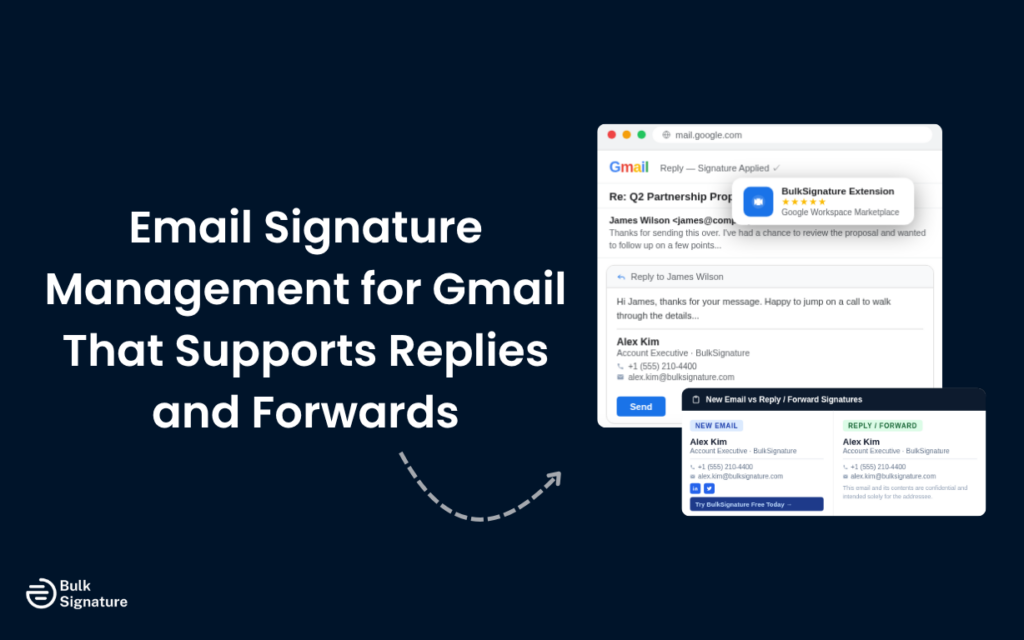
If you manage email signatures across a Google Workspace organization, you’ve probably run into this problem before.
You set up a new email signature template, and everyone’s signatures look great. They’re on brand, and they include the right contact details, social media icons, promotional banners, everything. But the moment someone replies to a thread or forwards a message, the signature disappears. Or (even more annoyingly), it reverts to whatever the individual employee set up manually months ago.
For marketing teams trying to maintain consistent branding, and for admins trying to keep things clean across the board, reply and forward signatures have long been a missing piece in Gmail signature management. But today, that changes.
BulkSignature now supports reply-to and forward signatures for Gmail, alongside a brand new Chrome extension that makes deployment faster and more flexible than ever. So if you’ve been looking for email signature management for Gmail that supports replies, this update is exactly what you’ve been waiting for.
Here’s what’s new, how it works, and what it means for your organization.
What's New in BulkSignature's Gmail Signature Management
Until now, most Gmail signature management tools could only apply email signatures to new emails composed from scratch. Replies and forwards were left unmanaged, which meant employees either added their own signature manually, used a stripped-down version, or sent messages with no signature at all.
That inconsistency can cause some real issues. A customer might get a reply from your support team with a completely different signature than the original email, which feels disjointed. Or a potential lead might receive a forwarded proposal with no signature at all, leaving them unsure who they’re actually dealing with.
We know how frustrating this can be, so we’ve made it possible to apply email signatures to replies and forwards in Gmail with BulkSignature. That means you can assign a lighter email signature version for internal threads, a full branded email signature for external replies, or a consistent signature across both. The choice is yours.
Our New Chrome Extension
This update is made possible with our recently released BulkSignature Chrome extension, available now on the Google Workspace Marketplace.
The extension gives users direct access to their assigned signatures without needing to navigate through Gmail settings or the Google Admin Console. For employees, it means all of their signatures are applied correctly every time without manual updates. And for admins, it means faster rollout across the organization without waiting for directory sync cycles to complete.
The extension works alongside BulkSignature’s existing Google Directory integration, pulling user data (name, job title, company name, phone number, and other details) directly from your Google Workspace account. This allows signatures to stay accurate automatically as employee information changes.
Why This Update Matters for Google Workspace Teams
Replies and forwards have always been the weak spot in Gmail signature management. This update fixes that, making it easier to keep everything consistent across your team. The following table highlights how different teams across an organization can benefit.
How Teams Benefit From Full Signature Coverage
Team | Previous Challenge | What’s Different Now |
Marketing | Promotional banners and brand identity elements only appeared on new emails. | Banners and branding now carry through to replies and forwards. |
IT/Admins | No central control over reply/forward signatures, with manual updates required. | Admins can assign and manage reply/forward signatures from one place. |
Sales | Forwarded proposals often arrived without a signature or with an outdated one. | Consistent signatures on all outbound messages, including forwards. |
HR/Legal | Legal disclaimers missing from reply chains. | Disclaimers can now be included in reply and forward signature templates. |
All Employees | Chrome extension not available; signature setup required manual configuration. | Extension handles signature assignment automatically on install. |
How to Set Up Reply and Forward Signatures in BulkSignature
Getting started with our new reply and forward signature feature is super straightforward. Here’s the general flow for admins managing a Google Workspace organization.
Step 1: Create and Prepare Your Signature Templates
Log in to your BulkSignature account and navigate to the signature section. If you haven’t already created your templates, this is a good time to set up two versions: one for new emails and one for replies and forwards. The reply version should be shorter and more focused, with fewer images and no promotional banners, so it keeps longer email threads clean and easy to read.
Step 2: Enable the Chrome Extension in BulkSignature
Before rolling anything out to your team, go to Settings and open the Integrations section in BulkSignature. From there, enable the Chrome extension for Gmail so it’s ready to be deployed across your organization.
Step 3: Deploy the Chrome Extension via Google Admin Console
Next, head to your Google Admin Console and navigate to Devices, then Chrome, then Apps & Extensions. From there, you can add the BulkSignature extension using its extension ID and set the install policy to force install. This allows the extension to be automatically applied to your users without requiring them to install anything manually.
Step 4: Assign Templates to Users or Groups
Once the extension is set up, return to BulkSignature and assign your signature templates. You can apply different templates to individual users, specific groups, or your entire organization. With Google Directory integration enabled, employee details like job titles, company names, and contact information are pulled in automatically and populated into the template.
Step 5: Configure Reply and Forward Signatures
In the signature management section, you’ll be able to enable and configure a separate signature for replies and forwards. If you don’t set a custom version, your primary signature will be used by default. If you do, this is where you assign the shorter version designed specifically for ongoing email threads.
Step 6: Complete User Verification in Gmail
After deployment, each user will need to complete a quick one-time verification. When they open Gmail, they’ll see the BulkSignature extension in their browser toolbar. From there, they can request a verification code, check their inbox, and enter the code to activate their signature.
Step 7: Test and Confirm
To finish, send a test email from a user account, then reply to it and forward it to another address. This allows you to confirm that the correct signature appears in each scenario. It’s also worth checking across different devices if your team uses Gmail on both desktop and mobile (more guidance on mobile-friendly email signature design here).
What You Can Include in Reply and Forward Signatures
This update opens up a lot more flexibility for your email signature strategy, but it also requires a bit more thought. Not every element that works well in a new email signature makes sense in a reply or forward. And as email threads grow, signatures need to stay clear, lightweight, and easy to scan, without repeating too much or overwhelming the conversation.
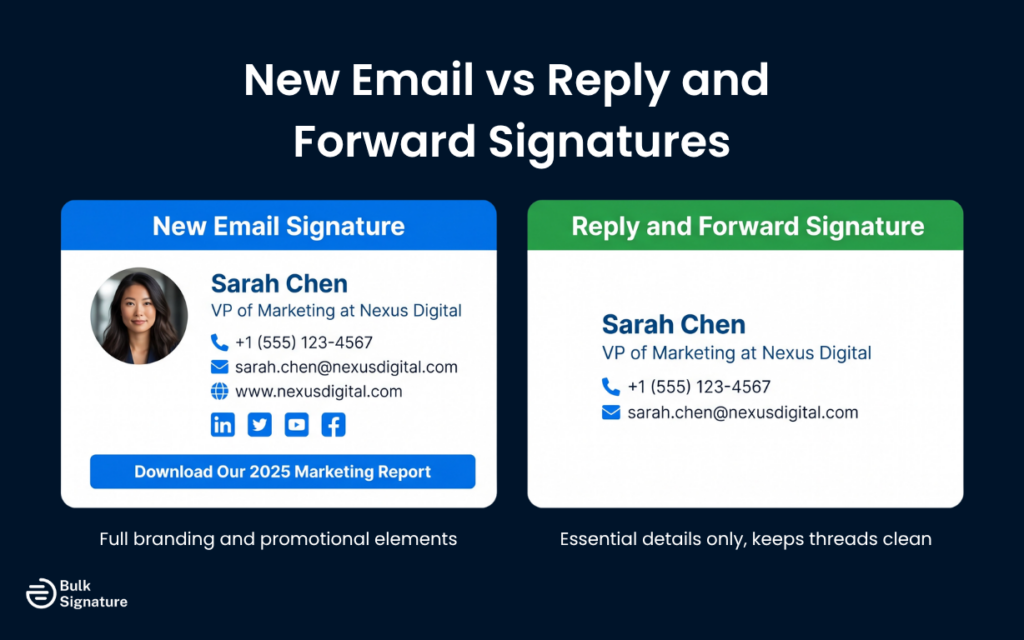
Here’s a breakdown of what to include in each type of email signature, based on our experience of what tends to work best.
What to Include in New Emails vs Replies and Forwards
Signature Element | New Email | Reply / Forward |
Full name and job title | Yes | Yes |
Company name and logo | Yes | Optional (smaller version) |
Phone number and contact details | Yes | Yes |
Social media icons | Yes | Optional |
Promotional banners | Yes | Not recommended |
Legal disclaimers | Yes | Yes (often required) |
Website link | Yes | Yes |
Profile photo | Yes | Optional |
The general principle is that reply and forward signatures should be functional rather than promotional. They confirm who you are and how to reach you, without adding visual noise to a thread that may already be several messages long.
Best Practices for Managing Reply and Forward Signatures at Scale
As your organization grows, email signature management (including email signatures for new emails, replies, and forwards) shifts from a one-time setup to an ongoing operational responsibility. Different groups and teams require different information, and without a structured approach, inconsistencies can start to creep in.
The key is to treat your organization’s email signatures as a managed system rather than individual assets. Below are the best practices that help maintain consistency, flexibility, and control as you scale.
Define Signature Standards by Team or Role
Not every team needs the same reply and forward signature, and taking a general approach often leads to missed opportunities or unnecessary clutter.
Instead, create role-specific templates. For example, sales teams can include booking links and campaign banners, while support teams may want to emphasize contact details and resource hubs. For leadership, it’s worth prioritizing branded elements and headshots.
By defining these standards upfront and assigning templates by group, you can give each team exactly what they need.
More inspiration on role-based email signature templates here: Email Signature Template Collection for Every Role
Centralize Control to Maintain Consistency
As headcount increases, relying on individuals to manage their own signatures becomes unreliable. Small variations, like outdated job titles, missing disclaimers, and inconsistent formatting, can really start to accumulate.
A centralized approach avoids this. Manage templates in one place and apply them across teams, so updates don’t depend on manual intervention. This keeps every signature aligned, regardless of team size or structure.
Keep Reply and Forward Signatures Lightweight
Reply and forward signatures serve a different purpose than new email signatures, and long threads can quickly become cluttered if full signatures are repeated.
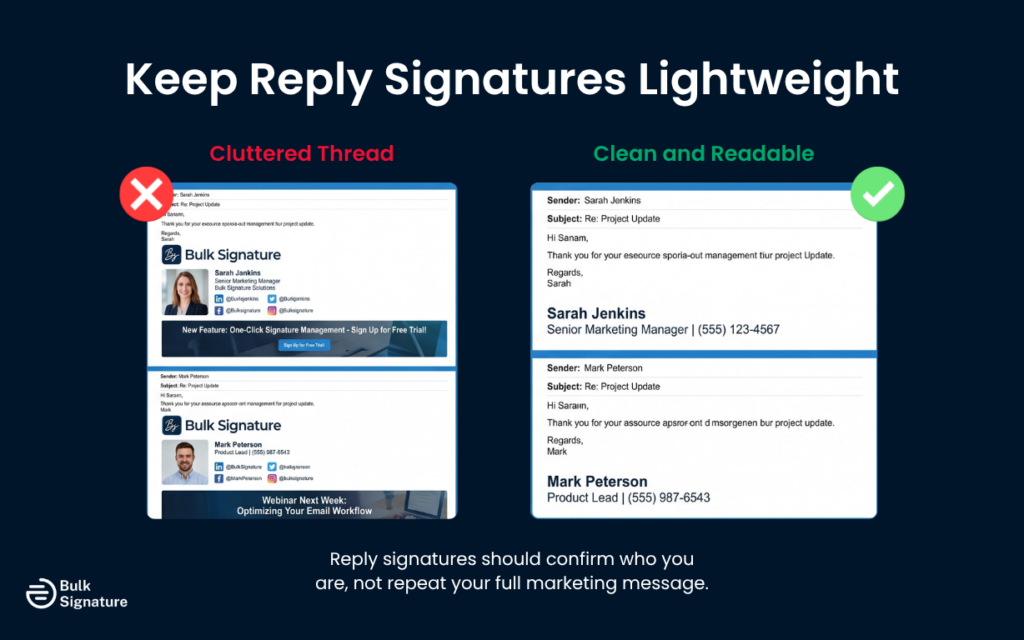
Instead, use shorter, simplified versions for replies, making sure to focus on essential details while removing heavier elements like banners and large images. This keeps conversations readable while still allowing employees to present themselves clearly and consistently in every email.
Get Started With Reply and Forward Signature Management in Gmail Today
If you’re already using BulkSignature, this update is ready for you now! Head to your signature settings to create your reply and forward templates, assign them to your users or groups, and start bringing consistency to every single email your team sends. If you haven’t installed the Chrome extension yet, you can find it on Google Workspace Marketplace. You can also find detailed guidance on using the Chrome extension in our help center.
If you’re new to BulkSignature, we’d love for you to give it a try! You can start a free trial and experience the full platform for yourself (including the new reply and forward signature support) before committing. Or, book a demo, and we’ll walk you through how it works!
Frequently Asked Questions About Reply and Forward Email Signature Management for Gmail
Can Gmail signatures be applied to replies and forwards?
By default, Gmail does not consistently apply centrally managed signatures to replies and forwards. That’s why many teams experience missing or inconsistent signatures in email threads. BulkSignature solves this by allowing you to apply managed signatures across new emails, replies, and forwards.
Why are email signatures missing from replies and forwards in Gmail?
This typically happens because Gmail treats replies and forwards differently from new emails. Without a centralized management tool, signatures often rely on individual user settings, which can be outdated and inconsistent.
How does BulkSignature manage signatures for replies and forwards in Gmail?
BulkSignature allows admins to assign separate templates for new emails and for replies and forwards. These templates are applied automatically based on rules you define, so every message type stays consistent without manual input from users.
What should be included in a new signature for replies and forwards?
Reply and forward signatures should focus on essential details like name, job title, and contact information. Heavier elements like promotional banners and large images should be avoided to keep email threads clean and readable.
Will signatures update automatically when employee details change?
Yes. BulkSignature integrates with Google Directory, so when employee information like job title or phone number is updated, those changes are automatically reflected in the email signature.


