
Having helped thousands of clients create and manage company-branded email signatures, we know just how hard it is to get every design detail right. Logos render differently across email clients, formatting changes between desktop and mobile, and things like legal disclaimers, social icons, and banners all introduce a new layer of complexities (and headaches).
That’s why we recently launched our AI email signature assistant, which provides guided, chat-based help for designing and deploying professional signatures at scale.
If you’re curious about how it works and how it can help simplify email signature management for your team or business, read on for a step-by-step guide on using our AI assistant inside BulkSignature.
But first…
What Even Is an AI Email Signature Assistant?
Our AI email signature assistant is an intelligent, chat-based tool built directly into the BulkSignature platform. It acts as a virtual design guide, answering your questions and providing step-by-step instructions for creating, customizing, and deploying your email signature.
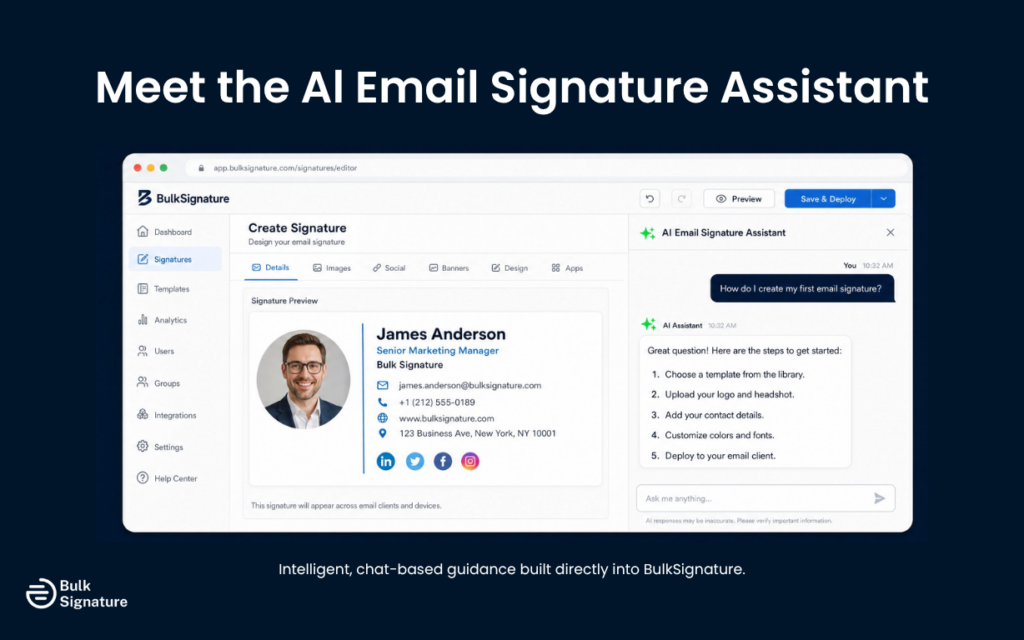
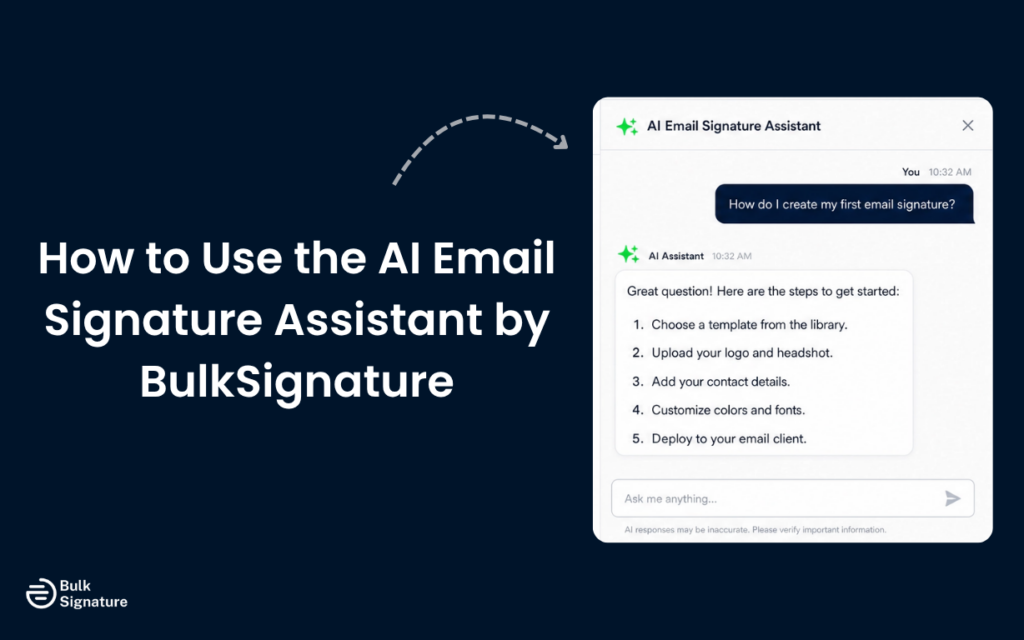
If you’re not sure how to approach a new email signature design or template, you can simply ask the assistant, “How do I create my first email signature?” The AI will then respond with clear, actionable steps and guide you to the right menus within the email signature editor.
Using BulkSignature's AI Email Signature Designer: A Step-By-Step Guide
Now, on to the good stuff! Here’s how you can use our AI email signature assistant to build a polished, professional email signature.
Step 1: Start With a Professional Email Signature Template
The easiest place to start is with a professional email signature template.
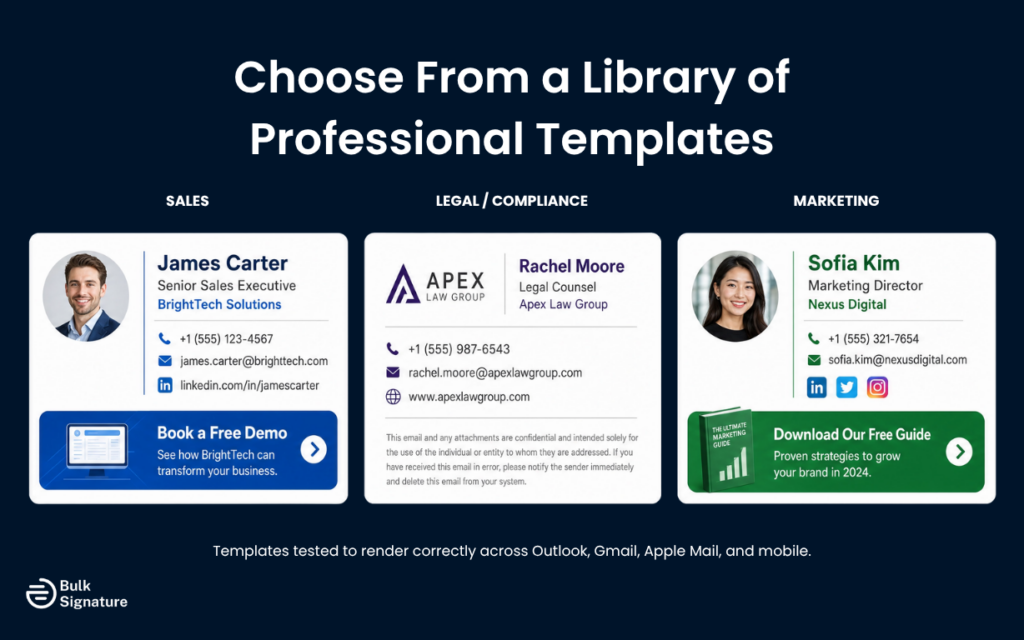
When you open the BulkSignature designer, you’ll find a library of pre-built templates designed for different industries, teams, and roles. So instead of staring at a blank screen, you can choose a layout that already works and customize it to fit your brand.
Not sure which template makes sense for you? Ask the AI email signature assistant.
If you work in sales, for example, the assistant might recommend a template that puts your phone number front and center and leaves space for a promotional banner. Or, if you work in legal, healthcare, or another regulated industry, it can point you toward layouts with built-in sections for disclaimers and compliance messaging.
The biggest benefit of starting with a template is that it will save you a ton (and we mean a ton) of time and hassle in the long run.
For example, our templates are tested to render properly across major email clients, including Outlook, Apple Mail, and Yahoo Mail, so you don’t have to worry about broken formatting or inconsistent layouts.
Or, for teams in regulated industries, templates also reduce the administrative burden of managing legal disclaimers. So instead of configuring disclaimer rules through Microsoft 365 admin settings or managing them through mail flow rules, you can start with a signature layout built to include required legal text from day one.
More on email signature compliance and legal disclaimers here: Email Signature Compliance: GDPR, HIPAA, Disclaimers & What Your Business Needs.
Step 2: Customize Your Essential Branding Elements
Once you’ve chosen a template, it’s time to make it yours.
A professional email signature should feel like an extension of your brand, and our AI email signature assistant makes customization much easier. It can guide you through updating colors, logos, fonts, photos, and contact details so everything stays polished and matches your brand guidelines.
In our experience, the best place to start is with the visuals. The assistant will show you where to upload your company logo and headshot, while also recommending image sizes and formats that look sharp across desktop and mobile devices.
Then, bring in your branding. You can apply your brand colors to text, dividers, and social icons, while sticking to web-safe fonts that display consistently across email clients.
Finally, add the essentials, such as your name, job title, phone number, office locations, website, and other contact details. If you’re an admin managing email signatures at scale, BulkSignature can automatically pull this information from your directory (such as Microsoft 365 or Google Workspace), so all signatures stay accurate without relying on employees to update details manually.
Step 3: Integrate Social Media Links and Banners
A good email signature should also help people discover your brand, follow your company, or learn about what you’re promoting.
This is where social links and banners come in, and our AI email signature assistant can help you add branded social media icons for platforms like LinkedIn, Facebook, or X without disrupting the layout of your signature. It can also recommend placement, spacing, and styling so the icons feel polished rather than distracting.
Just as important, the assistant helps you link to the right places, and for company-wide signatures, that usually means official brand accounts instead of personal employee profiles.
And if you’re looking to promote something, like a product launch, webinar, event, or seasonal offer, you can also add promotional banners at the bottom of each signature.
Step 4: Optimize for Mobile Responsive Designs
One of the biggest challenges in email signature design is making sure the layout works on smaller screens. Our AI email signature assistant helps you avoid common formatting issues completely by recommending mobile-friendly layouts, image sizing, and spacing that render cleanly across devices.
Typically, it will suggest simpler single-column designs, better logo sizing, and more readable spacing to prevent signatures from looking cramped on phones. This extra guidance will help your signature stay polished across all platforms and devices, including Gmail, Outlook, Apple Mail, and mobile.
More on designing mobile-friendly email signatures here: Mobile Email Signature Examples That Work on Every Device.
Step 5: Deploy to Your Email Client
Once you finally have a perfectly polished signature, the final step is deployment.
When you’re happy with your signature, the AI assistant will guide you through the setup process, whether you’re applying it to your own inbox or rolling it out across an entire team. It can provide step-by-step instructions for email clients like Gmail, Microsoft Outlook, and Microsoft 365, helping you get everything configured correctly.
Before rolling it out organization-wide, it’s also a good idea to send a few test emails first. Check how your signature looks across desktop and mobile devices, confirm links and images work properly, and make sure formatting appears exactly how you want it before it goes live for everyone.
Advanced Features and (Even) More Settings Worth Exploring
As you become more comfortable with the platform, you can also ask the AI assistant to help you explore even more advanced settings within BulkSignature.
For example, you can ask how to create plain text versions of your signature for email clients that block HTML, optimize signatures for dark mode, customize signatures for replies and forwards, or manage role-based variations across departments.
The possibilities really are endless, and our AI assistant is here 24/7 to answer questions, recommend best practices, and help you get the most out of the BulkSignature platform as your needs evolve.
Effortless Signature Management With BulkSignature
Your email signature is often the very last thing a client sees when they read your message. It’s a critical component of your brand identity, and it’s a powerful tool for driving engagement and staying compliant.
Our AI email signature assistant is designed to help you make the most of this essential business asset, so you can build an email signature that:
- Renders correctly across major email platforms and devices, including Gmail accounts, Outlook accounts, Yahoo Mail, and mobile.
- Accurately reflects your brand and professional appearance with consistent logos, colors, and messaging.
- Reinforces trust and professionalism with every email sent.
Ready to unleash the full potential of your email signatures? Try BulkSignature’s AI email signature designer for free today — no credit card required!
Frequently Asked Questions About AI-Powered Email Signature Designers
What’s the difference between an electronic signature and a free email signature generator?
Even though these terms sound similar, they mean very different things.
An electronic signature (or e-signature) is used to legally sign contracts and documents digitally.
A free email signature maker or generator helps you design the contact information block that appears at the bottom of your emails, usually including your personal name, title, logo, company name, contact details, and social links.
An AI email signature maker goes a step further by helping you create and customize signatures through intelligent recommendations, guided setup, and troubleshooting support.
Do I need to know HTML code to create a professional email signature with BulkSignature?
No. While traditional email signatures often require editing HTML to fix spacing, resize images, or troubleshoot formatting issues, BulkSignature handles the technical work for you.
Using professionally designed templates and the AI Email Signature Assistant, you can customize your signature through a simple visual editor and get guidance to keep it looking polished across all email clients and devices.
Can I create different signatures for different types of email messages?
Absolutely. Many businesses use different signatures for new emails, replies, and forwards. For example, you may want a full signature with banners and social links for first-touch emails, and a simplified version for ongoing conversations. BulkSignature makes it easy to manage these variations, and the AI assistant can guide you through setup based on how your team communicates.


