
Let's tackle the common scenario we've seen on many companies. On Monday, Ivan in IT changed Maya's job title in Active Directory from Account Manager to Senior Account Manager. Within the hour, Microsoft Entra Connect had copied the change to Microsoft 365. On Thursday, Maya answered a client from Outlook, and her email signature still said Account Manager.
Nothing was broken. Her signature was a block of HTML someone had pasted into Outlook two years earlier, and nothing tied it to the directory.
Short answer: an email signature only shows directory data when something puts it there. A signature manager such as BulkSignature reads your cloud directory, Google Workspace's directory or Microsoft Entra ID (formerly Azure AD), and fills in each person's signature from it: name, title, phones, photo, and extra fields you switch on, such as extension attributes 1–15 or cost center. On-premises Active Directory reaches the cloud directory first, usually through Google Cloud Directory Sync or Microsoft Entra Connect.
Where your signature data really lives
BulkSignature works with Google Workspace and Microsoft 365, and it reads the directory your mail already runs on. It doesn't connect to your domain controllers.
- Google Workspace: the user profiles in the Google Admin console, under Directory › Users.
- Microsoft 365: Microsoft Entra ID, the directory behind the Microsoft Entra admin center and the Microsoft 365 admin center.
If you still run Active Directory on premises, your people's details have to reach that cloud directory first. Google Cloud Directory Sync copies them into Google's directory on the schedule you set. Microsoft Entra Connect copies them into Microsoft Entra ID, every 30 minutes by default. A field your sync tool leaves out never reaches a signature.
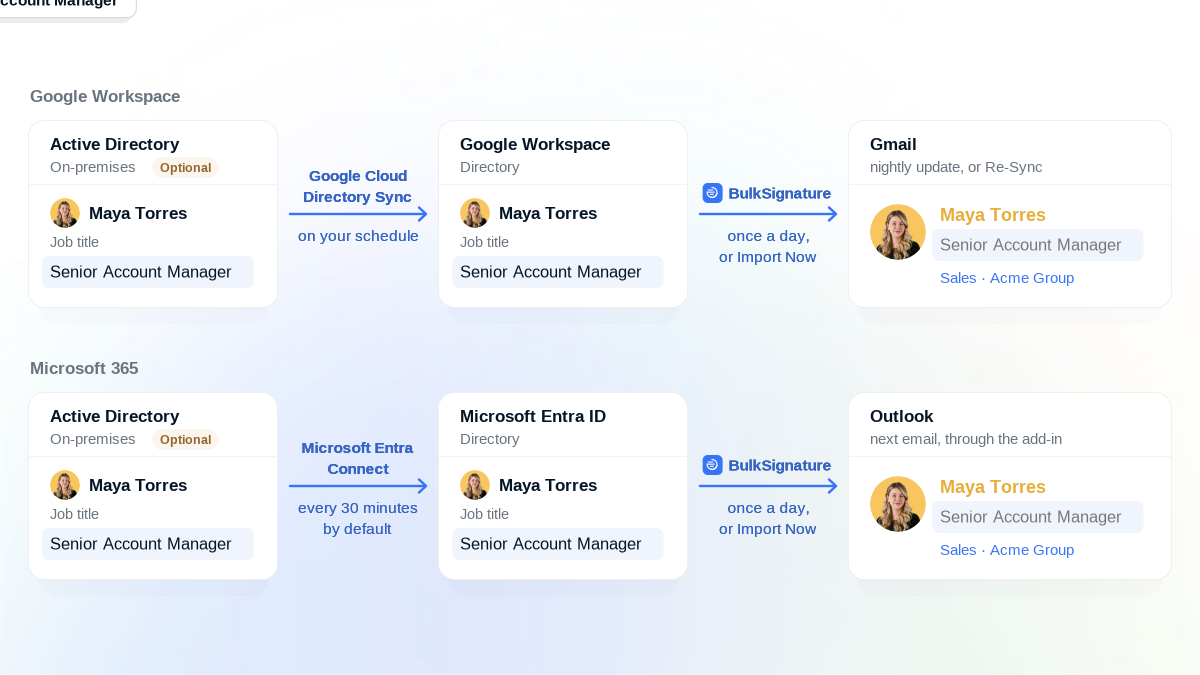
From there, BulkSignature reads the cloud directory once a day, or when you press Import Now, and fills in every signature from what it finds. Nothing is ever written back to your directory.
Which directory fields can go into a signature
Once your directory is connected, these fields come in for everyone with no extra setup. In the BulkSignature Designer, each one is a variable: you place Job Title or Department in the design once, and every person's signature shows their own value.
| In the signature | Google Workspace (Admin console) | Microsoft 365 (Microsoft Entra ID) |
|---|---|---|
| Name | First name, Last name | First name, Last name, Display name |
| Job title | Job title | Job title |
| Department | Department | Department |
| Office | Building ID | Office location |
| Work phone | Phone, type Work | Business phone |
| Mobile | Phone, type Mobile | Mobile phone |
| Fax | Phone, type Work fax | Fax number |
| Address | Address, type Work (the one-line address, not its separate parts) | Street address, City, State or province, ZIP or postal code, Country or region |
| Employee ID | Employee ID | With additional fields on |
| Photo | Profile photo | Profile photo |
Two details catch people out. Google Workspace passes on the building's ID, not its name. If a sync tool fills the Location field on Google profiles (the Admin console has no box for it), that comes in as an additional field. And the Office box in Active Directory Users and Computers is the same field Microsoft Entra ID calls Office location.
Company-wide details, such as your logo, website, main phone number and social links, don't come from each person's record. You enter them once in BulkSignature, under Company Data › Company Information.
Fields beyond the basics: additional fields
Most directories hold more than a name and a title: cost centers, employee types, license numbers, desk locations. BulkSignature can bring those in too. Since November 1, 2026, they all come with one switch per company, included in every plan.
- Google Workspace adds fields such as location, cost center, type of employee, floor and desk, plus the custom attributes you created in the Google Admin console.
- Microsoft 365 adds employee ID, company name, employee type, hire date, division, cost center, usage location, preferred language, extension attributes 1–15, and the custom Active Directory attributes you sync as directory extensions in Microsoft Entra Connect (single-value ones). BulkSignature finds those on its own, so there's nothing to map in BulkSignature.
To turn it on (you need the Admin or Manager role):
- In BulkSignature, go to Settings › General Settings and find the EMPLOYEES SYNC section.
- Switch on Google Workspace Additional Fields or Microsoft 365 Additional Fields, then press Save Changes.
- Press Import Now, or wait for the next daily import.
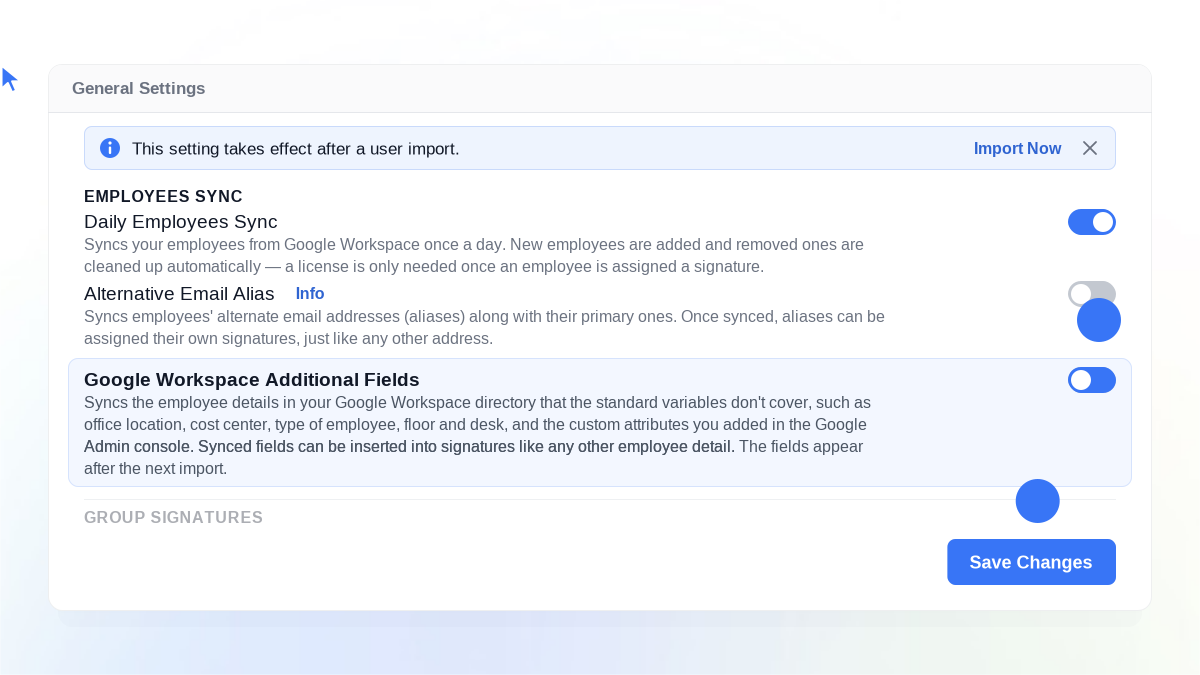
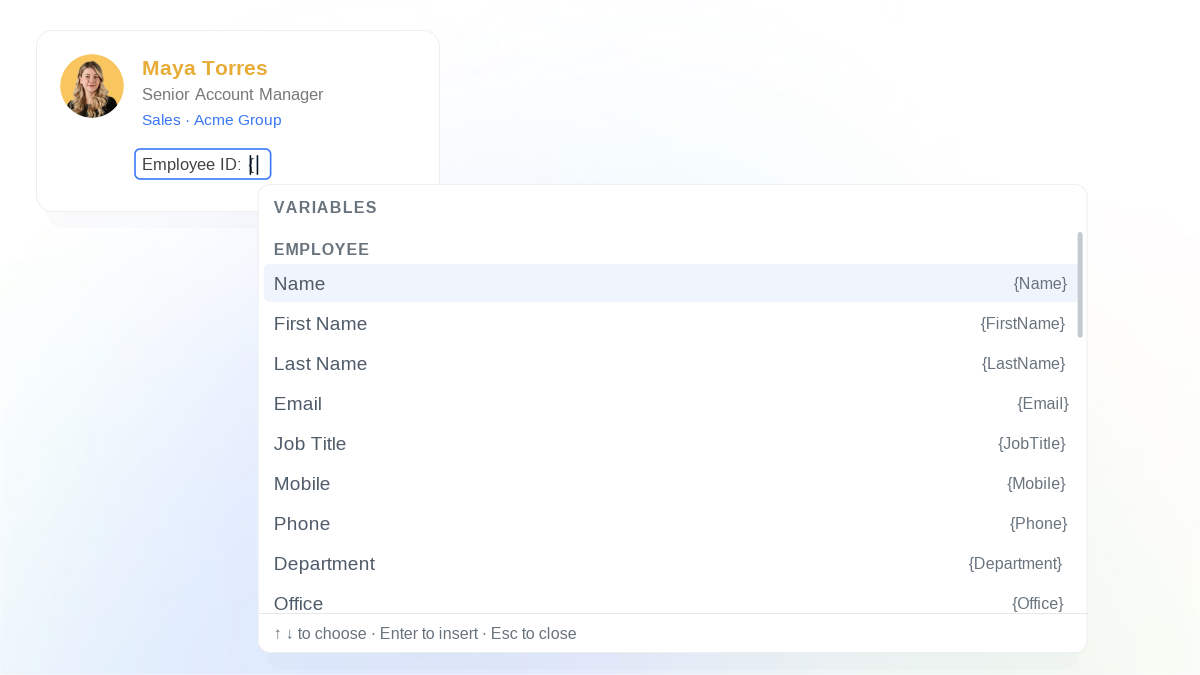
After the import, the new fields show up in every variable list in the Designer, grouped by kind, each with a count of how many people have a value. Use them like any other field, or in a visibility rule, for example to show a license number only for the people who have one. The Help Center article on additional fields lists the fields for each platform.
A few rules keep it predictable:
- The directory always wins. Additional fields can't be edited in BulkSignature. To change a value, change it in the directory.
- Only filled fields, up to 100. A field appears once at least one person has a value. If your directory holds more than 100 such fields, BulkSignature keeps the 100 that the most people have filled in.
- Values aren't reformatted. A hire date shows as 2021-03-15, and usage location as Microsoft's two-letter country code, such as US.
- Some fields stay out. The manager, Microsoft's custom security attributes and multi-value Active Directory attributes don't come in.
When a change shows up in signatures
A directory change travels in up to three steps, and each runs on its own clock:
- From Active Directory to the cloud. Google Cloud Directory Sync runs when you schedule it; Microsoft Entra Connect runs every 30 minutes by default. Skip this step if you manage people in the cloud only.
- From the cloud directory to BulkSignature. BulkSignature reads the directory once a day, or when you press Import Now. Google says a change to a user's profile can take up to 24 hours to take effect.
- From BulkSignature to the email. With Google Workspace, Gmail signatures are rewritten in a nightly update, so a change usually reaches Gmail the night after the import; Re-Sync on the signature starts it right away. With Microsoft 365, the Outlook add-in fetches the signature for each new email, so the new value usually shows from the next email after the import. On a slow connection, an email can still go out with the add-in's saved copy.
A change made after the day's import waits for the next one. When it can't wait, press Import Now, and for Gmail, Re-Sync.
Fix the data at the source
A signature can only be as right as the directory behind it. Before you roll out signatures, check the directory:
- Edit synced people in Active Directory. For accounts synced from on-premises AD, Microsoft says to update contact and job details, such as job title, department, phones and address, in Active Directory; the change takes effect after the next sync cycle. Google Cloud Directory Sync works the same way: each run makes Google match Active Directory, so edit there.
- Edit cloud-only people in the cloud. Use Directory › Users in the Google Admin console, or the Microsoft Entra admin center or Microsoft 365 admin center.
- Look for blanks and variants. A missing job title, "Sales Dept" next to "Sales", or mobile numbers typed three different ways all end up in signatures.
- Agree who owns each field. HR often owns titles and departments while IT owns phones and offices. Write it down.
Phone numbers are the classic mess. In the BulkSignature Designer, you can show your country's numbers in one format without touching the directory; see how to format phone numbers in email signatures. For the rest of a rollout, see how to deploy email signatures across your organization.
Blank fields and exceptions
Not everyone has a mobile number, and nobody wants an empty "M:" line. In the BulkSignature Designer, a contact row with no value drops out on its own, and any row can have a fallback. For anything else, a visibility rule shows or hides a block based on a field: only when the person has a mobile number, say, or only when Department equals Sales.
Sometimes the directory is right and a signature should still say something else, like the name someone actually goes by, or a shorter job title. Edit that value for the person in BulkSignature. The field locks, and later imports leave it alone until you unlock it. From then on, the field follows the directory again, with its current value from the next import at the latest. This works for the standard fields; additional fields always follow the directory.
What it does not do
- It doesn't read on-premises Active Directory directly. There's no agent or LDAP connection. Your fields need to be in Google Workspace's directory or Microsoft Entra ID first.
- It isn't instant. It reads your directory once a day, or whenever you press Import Now.
- It never writes to your directory. Values you edit in BulkSignature stay in BulkSignature.
- It connects one directory per account. A company is one Google Workspace account or one Microsoft 365 tenant, not both.
- It doesn't assign signatures by field value. You assign signatures to people, groups, Google organizational units, email domains or the whole company. Inside a signature, visibility rules can react to any field.
FAQ
Can Gmail or Outlook fill in signatures from the directory without a tool?
Only partly. In Google Workspace, the Admin console can append a footer to outgoing mail, but its text is the same for everyone in an organizational unit, with no per-person details. In Microsoft 365, an Exchange mail flow rule can add a footer with directory fields such as name, title and phone, but it goes at the very top or bottom of the message, not under your reply. Our guides to company-wide signatures in Google Workspace and managing signatures in Microsoft 365 compare the native options.
Can I use extension attributes 1–15?
Yes, with Microsoft 365. With additional fields on, each one that holds a value appears in the Designer as Extension attribute 1, Extension attribute 2 and so on. Exchange calls them custom attributes 1–15; they're the same fields. For people synced from on-premises AD, set them in Active Directory. For cloud-only mailboxes, set them in the Exchange admin center, under the mailbox's custom attributes.
Why doesn't a change show up in signatures yet?
Check the steps in order. Is the new value in the cloud directory yet: in the Google Admin console, or in Microsoft Entra ID after Microsoft Entra Connect's next cycle? Has BulkSignature's daily import run since then, or did you press Import Now? Was the field edited in BulkSignature, so it's locked? And for Gmail, has the nightly update run, or did you press Re-Sync?
Can different departments get different signatures?
Yes, in two ways. Assign a signature to a group (switch on group signatures in General Settings first; only direct members count) or, in Google Workspace, to an organizational unit. Or keep one signature and let visibility rules show department-specific lines, such as a support hotline only when Department equals Support.
Try it on your own directory
BulkSignature has a 14-day free trial with no credit card required. Connect Google Workspace or Microsoft 365, switch on additional fields, and see your own people's details in a signature. Start the free trial, or book a demo.


